1. Built-in ThinkLink on the Gateway (TKG)
TKG (ThinkLink Gateway) is a lightweight ThinkLink instance pre-installed on ManThink gateways. It handles LoRaWAN data ingestion and processing locally, with no external server required.
TKG vs TKE — Key Differences
| Item | TKG (Built-in) | TKE (Docker Self-hosted) |
|---|---|---|
| Runs on | ManThink gateway hardware | Linux server / cloud VM |
| Upgrade method | Upload a dedicated firmware package via WebConfigure | docker compose pull + restart |
| Upgrade package | TKG-specific — not interchangeable with TKE | Docker image |
| MQTT Broker credentials | Fixed system credentials — cannot be changed. Contact your sales representative to obtain them | User-configured per organization |
| Best for | Small local deployments, no server available | Enterprise private deployment, multi-gateway management |
⚠️ Important: The internal MQTT Broker credentials on a TKG device are fixed at the system level and cannot be changed through the ThinkLink UI. These credentials are required both for external clients connecting directly to the gateway broker and for ThinkLink Forwarder configurations that reference the internal broker. Contact ManThink sales to obtain the credentials.
1.1. Access the Gateway Management Interface
All TKG configuration is done on the WebConfigure page. There are two ways to reach it:
Method 1: Via the gateway's LAN IP address
Make sure your computer is on the same network as the gateway, then open a browser and go to:
http://<gateway-IP-address>See Gateway IP Acquisition Guide for how to find the IP.
Method 2: Connect to the gateway's WiFi hotspot
Connect to the gateway's default WiFi hotspot (see the product manual for SSID and password), then access:
http://192.168.1.1Note: The gateway WiFi must be in AP mode. If it has been switched to Client mode, the hotspot will not be visible.
1.2. Enable and Access ThinkLink (TKL)
1.2.1. Enable ThinkLink
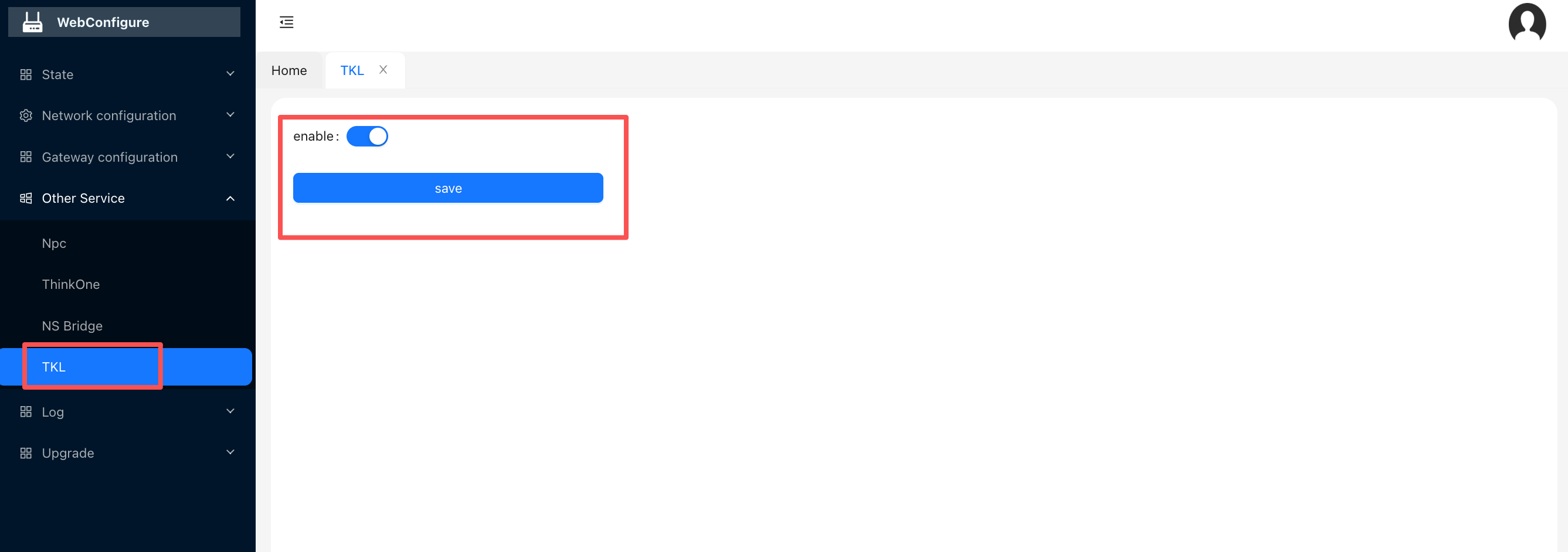
On the WebConfigure page, locate the TKL section, turn on the Enable switch, and click Save.
1.2.2. Access ThinkLink
The TKG ThinkLink interface is available at:
http://<gateway-IP-address>/tkl-web/For example: http://192.168.1.1/tkl-web/
The login page will appear. Default credentials:
- Username:
admin - Password:
TKedge_0801 - Default organization account:
mtfac
⚠️ Security notice: change the default password immediately This is the factory default password shared across all devices. After your first login, go to Personal Center and change the password right away. Anyone who can reach this address can otherwise log in to your system.
1.3. ThinkOne Configuration
ThinkOne handles LoRaWAN MAC device authentication, protocol parsing, and forwards parsed data to the AS.
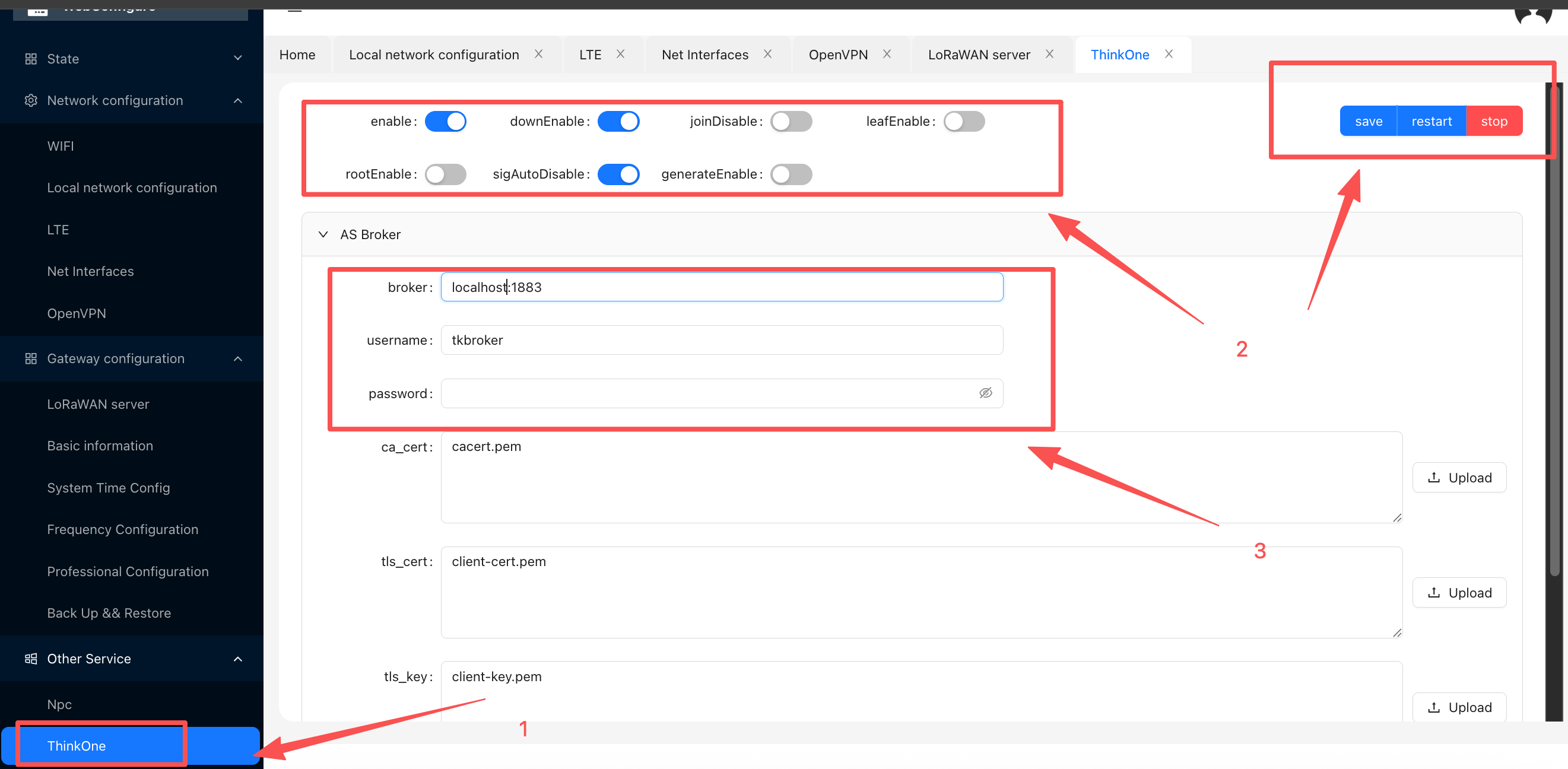
1.3.1. Recommended Configuration
| Item | Recommended State | Note |
|---|---|---|
enable | Enabled | Activate ThinkOne |
downEnable | Enabled | Allow downlink data |
joinDisable | Disabled | Allow device Join |
leafEnable | Disabled | — |
rootEnable | Disabled | — |
sigAutoDisable | Enabled | Auto-handle signatures |
generateEnable | Disabled | — |
Do not modify the defaults unless there is a specific reason to do so.
1.3.2. AS Broker Configuration
The default AS Broker address is localhost:1883, pre-configured at the factory. No changes are normally needed.
⚠️ If you accidentally change these credentials and lose connectivity, use the reset credentials below (provided by ManThink — contact sales if you do not have them):
username=thinklink password=tkl_17051.3.3. AS2 Broker Configuration (Forward to Third-party Platform)
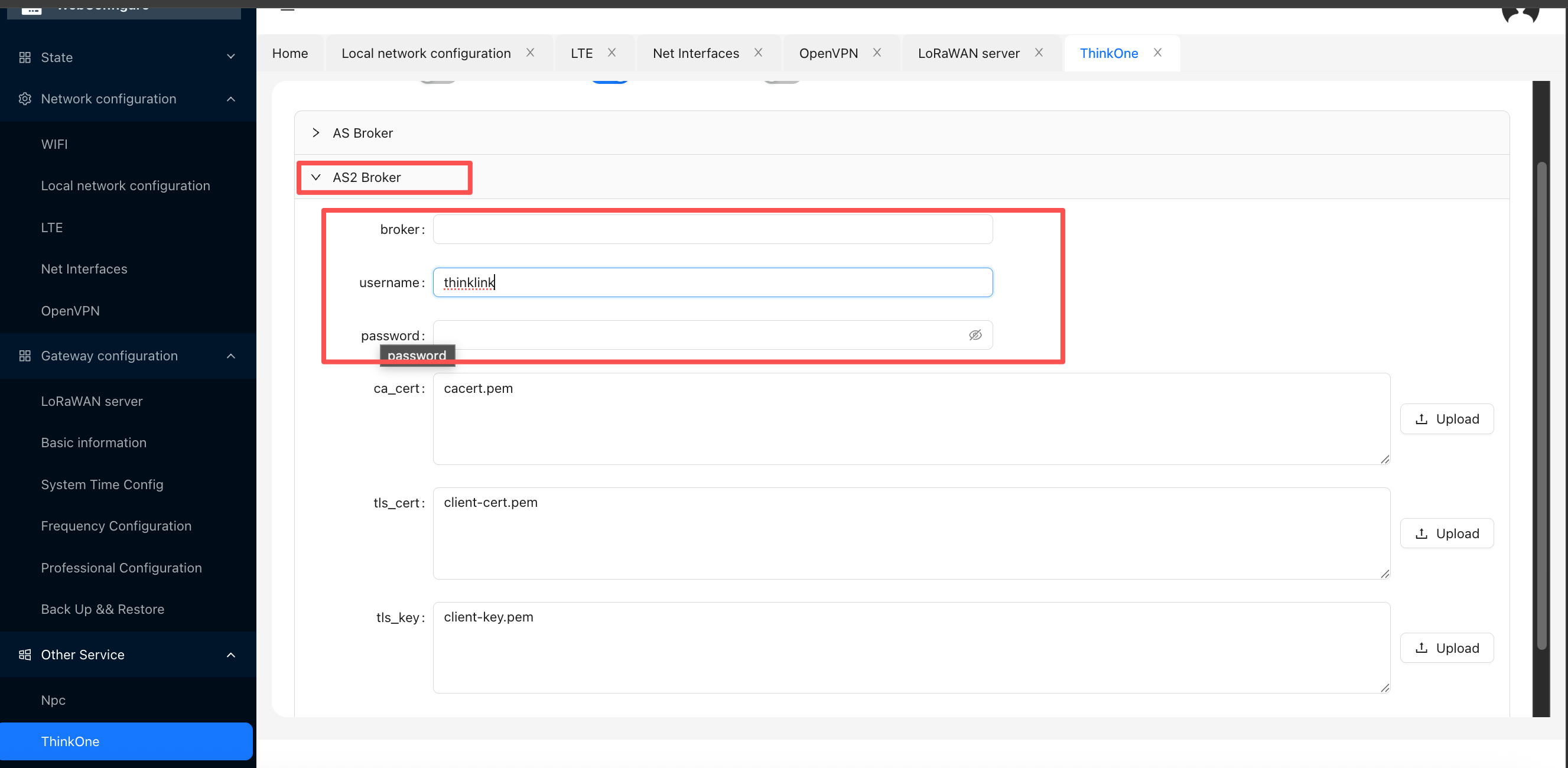
To push NS-parsed data to an external platform, fill in the target platform's Broker address, username, and password under AS2 Broker.
AS2 Broker supports uplink data only — downlink commands are not accepted. Leave the AS2 Broker address empty if no forwarding is needed.
1.3.4. Restart the Service
- Click Save to save the configuration.
- Click Restart to restart the ThinkOne service and apply changes.
1.4. Point the NS to the Built-in Server
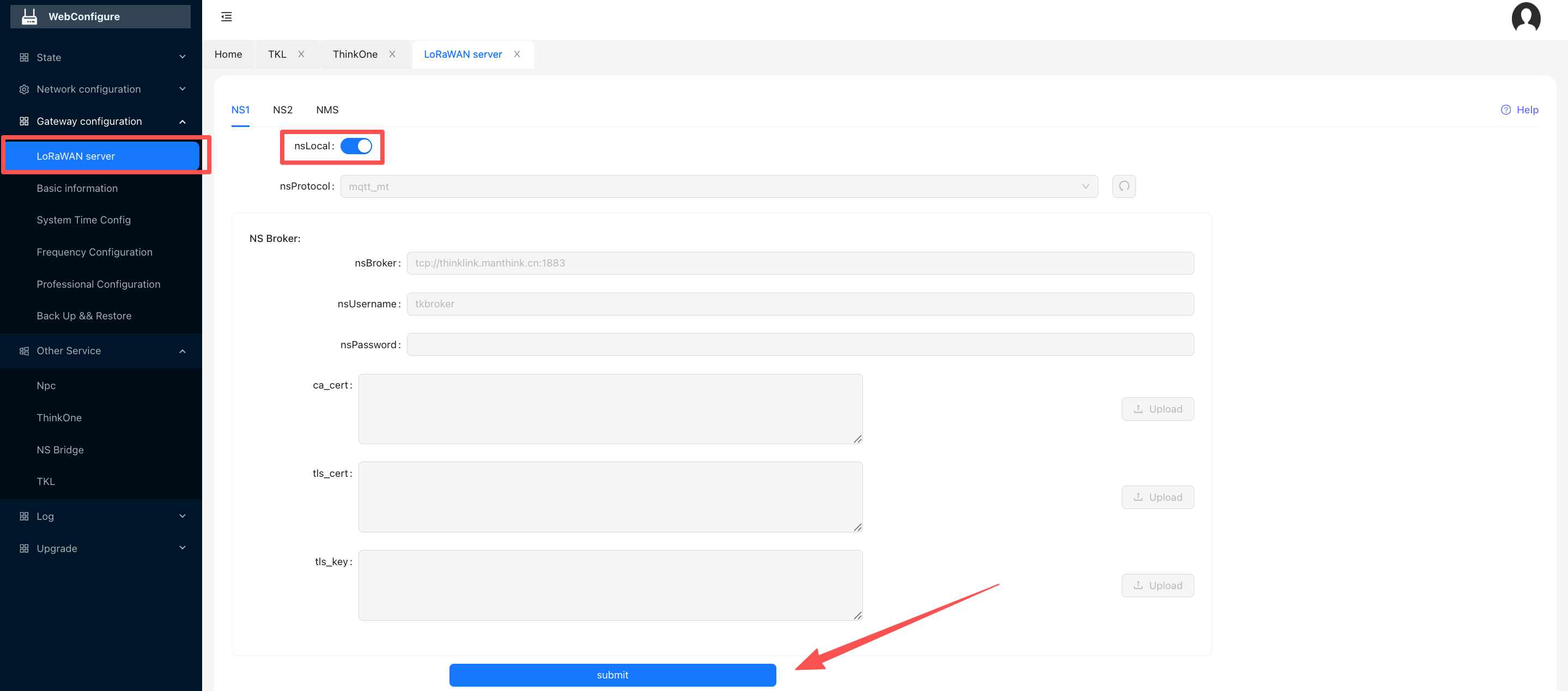
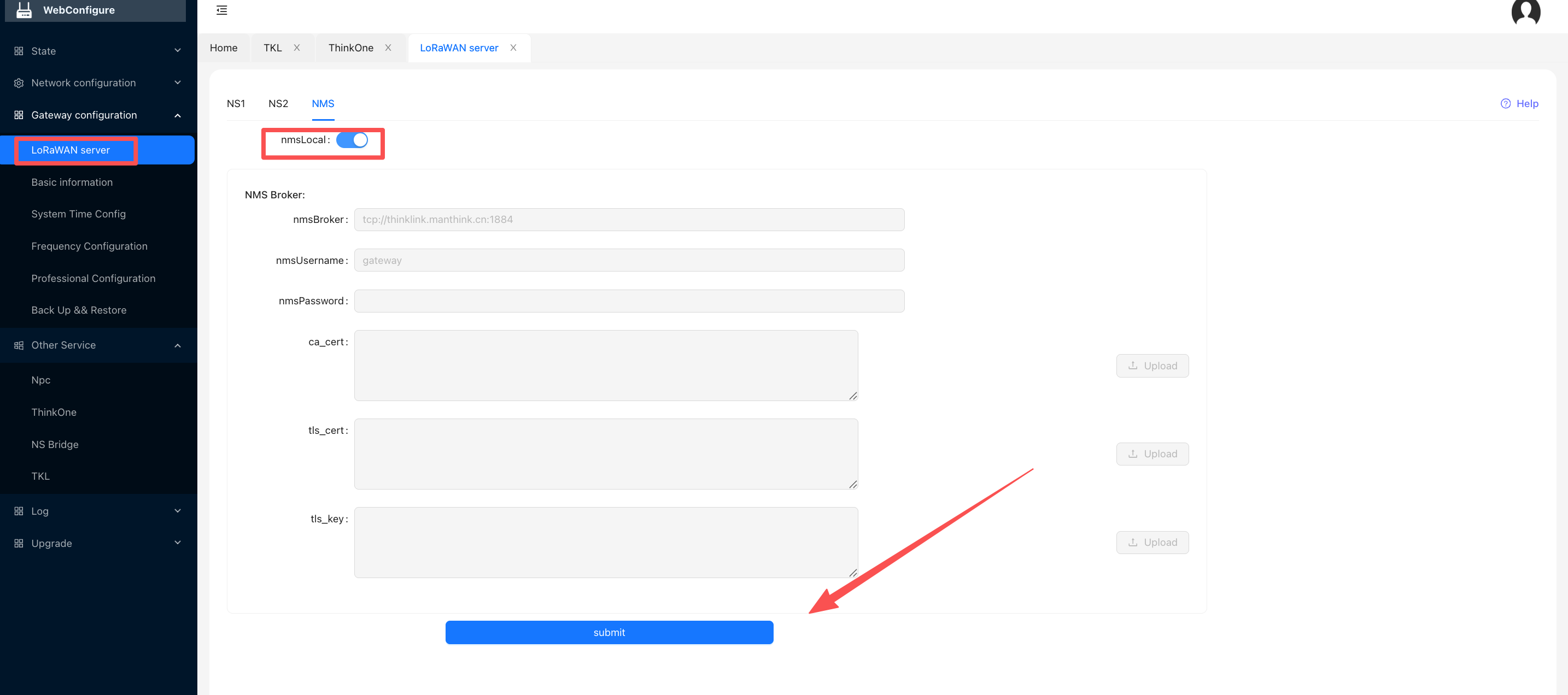
1.4.1. Enable nsLocal
Enable this option to point the NS address to the built-in NS. Click Submit when done.
1.4.2. Enable nmsLocal
Enable this option so the gateway is managed by its built-in TKL. Click Submit when done.
1.5. Managing the Gateway After Login
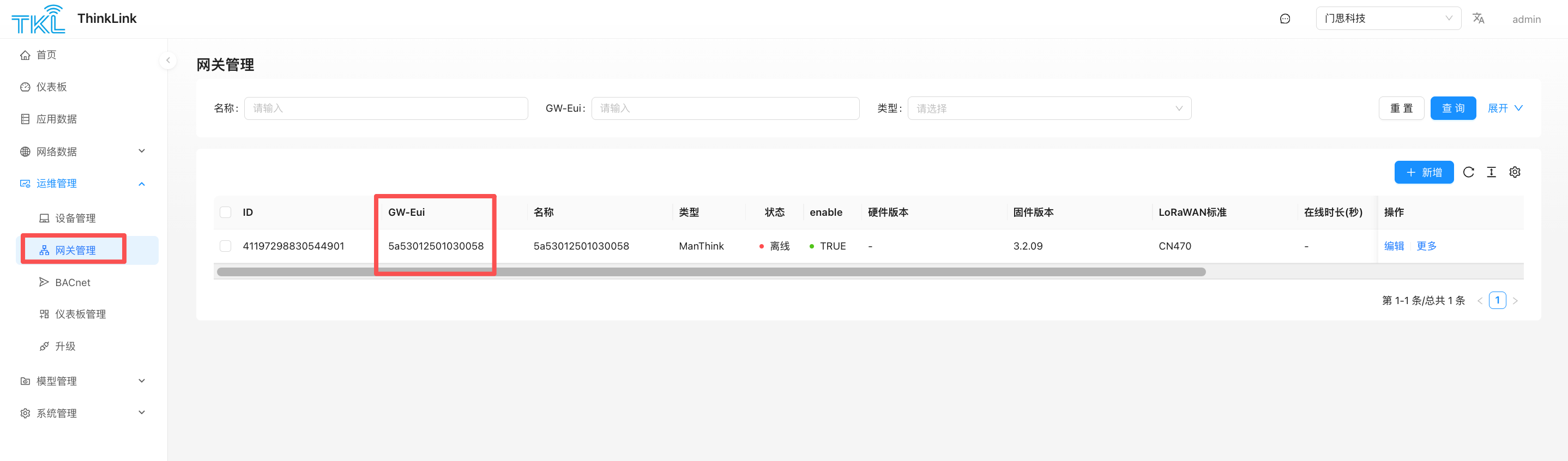
1.5.1. Add the Gateway in Gateway Management
Go to Operation Management → Gateway Management. If the gateway does not appear in the list, click Add, enter the gateway's EUI and Pincode, select gateway type ManThink, and complete the claim.
1.5.2. Gateway Persistently Shows "Offline" — Common Cause
Cause: Organization account mismatch
If the gateway was previously registered on the cloud platform (think-link.net), its organization account may differ from the one configured inside TKG. The gateway reports to the cloud organization but TKG cannot find a matching record, causing it to show as permanently offline.
Fix (choose one):
- Recommended: Create a new organization in TKG using the same account name as the cloud platform organization. The gateway will automatically be associated with it.
- Alternatively: In TKG Gateway Management, remove and re-add the gateway, selecting the correct organization (tenant) when adding it.
This is one of the main reasons to keep your TKG organization account name consistent with the cloud platform. See: Organization Management → Recommended Workflow
1.6. Best Practice: Profile and Model Management
1.6.1. Pull Device Profiles from the Cloud Platform (Recommended)
After configuring device profiles on the cloud platform, you do not need to re-enter them manually in TKG. Use Remote Data Pull to sync everything at once:
Go to System Platform → Remote Data Pull, configure the cloud platform connection, and pull device profiles, thing models, triggers, and other data in one step.
This is the most efficient way to onboard devices in a TKG environment and is strongly recommended as the standard workflow.
1.6.2. Sync Public Thing Models from the Cloud Platform
The ThinkLink cloud platform maintains a library of public thing models for a wide range of sensor vendors. To bring these into TKG:
Go to System Platform → Model Management, click Sync from Cloud, and the public model library will be imported locally — no manual model authoring required.
1.6.3. Import Profiles Locally
If the gateway cannot reach the cloud platform, you can export data to a file and import it manually.
1.6.4. Never Have the Same Device Profile Active on Two Platforms at Once
⚠️ Important: a LoRaWAN device profile must not be active on more than one platform at the same time.
If the same device has an active profile on both the cloud platform and TKG (or TKE), both platforms will respond to that device's Join requests and Confirm packets simultaneously. This causes Join conflicts, downlink collisions, and erratic behavior — the device may repeatedly disconnect or fail to communicate reliably.
When something goes wrong, this is the first thing to check.
Fix (apply on the platform you are NOT actively using — pick one):
- Set the device's LoRaWAN profile
enableto false (disable the profile entirely) - Set
downEnableto false (block downlinks from that platform while keeping uplink data visible) - Delete the device profile from that platform
1.7. MQTT Broker Connection Information
⚠️ Key difference from TKE: The internal MQTT Broker credentials on a TKG device are fixed system credentials that cannot be changed. They are required for both external subscriber clients and for Forwarder configurations that point to the gateway's internal broker. Contact ManThink sales to obtain the credentials.
Built-in AS (Application Server) MQTT Broker:
- Address:
<gateway-IP>:1883, e.g.192.168.1.1:1883 - Username / Password: Fixed credentials — contact sales to obtain
Subscription Topics
AS uplink raw data (LoRaWAN-decrypted):
/v32/mtfac/as/up/data/#Thing model parsed uplink data:
/v32/mtfac/tkl/up/telemetry/#Protocol reference: ThinkLink Protocol
Use an MQTT client such as MQTTX to subscribe and verify data reception.
1.8. Upgrades
TKG has two independent upgrade targets with separate entry points:
| Upgrade target | Description | Where to do it |
|---|---|---|
| ThinkLink application upgrade | Upgrades the built-in ThinkLink (TKL) version — thing models, protocols, features | ThinkLink UI → System Platform → System Upgrade. See the System Platform Upgrade docs |
| Gateway firmware upgrade | Upgrades the gateway's underlying firmware (LoRaWAN stack, hardware drivers, etc.) | WebConfigure → Upgrade |
ThinkLink Application Upgrade
Performed entirely within the ThinkLink UI — no access to WebConfigure required. After upgrading, run Remote Data Pull once to verify that profiles and models are intact.
Gateway Firmware Upgrade
⚠️ Gateway firmware packages are not interchangeable with TKE images. Obtain the gateway-specific package from your vendor.
- Obtain the gateway firmware upgrade package from your vendor.
- In WebConfigure, open the Upgrade section.
- Upload the package and wait for the upgrade to complete. The gateway will reboot automatically.
- After reboot, confirm the version number has updated in WebConfigure.
1.9. Troubleshooting
No data visible in NS or AS
Common cause: System time is incorrect
ThinkLink validates data using timestamps — when the system clock is wrong, data is discarded and nothing appears in the NS or AS views.
Steps:
- In WebConfigure, go to System Time Config.
- Check whether the current time is correct. If it shows an abnormal value (e.g. 1970), set it to the current correct time.
- Restart the ThinkOne service (Save → Restart).
- Monitor the NS / AS interface for incoming data.
Gateway shows offline
See 1.5.2. Gateway Persistently Shows "Offline".
Devices cannot Join / keep dropping / downlink conflicts
Check first: is this device's profile active on more than one platform?
If the device has an active profile on both TKG and the cloud platform (or TKE), both will compete to handle Join and Confirm packets, causing Join failures and communication errors.
See 1.6.4. Never Have the Same Device Profile Active on Two Platforms at Once.
Other checks:
- Confirm
joinDisableis disabled (Join is allowed). - Confirm the device's DevEUI / AppKey profile is correctly entered.
- Check the gateway system time — an incorrect clock causes Join failures.