1. Gateway Management
ThinkLink (TKL) supports multiple gateways, including vendor-supplied gateways and third-party gateways conforming to standard protocols, enabling flexible network deployment and centralized management.
1.1. Supported Gateway Types
TKL supports the following two types of gateway access:
- Vendor Gateway: Adopt
mqtt_mtprotocol to achieve a secure connection through the vendor's proprietary communication mechanism. - Third-Party Gatewaysupport Standards GWMP (based on UDP protocol) the gateway device ensures wide compatibility.
1.2. Gateway Information Required
when you add a gateway, the following fields are required to uniquely identify and correctly configure the Gateway:
| field | description |
|---|---|
gwEui | the EUI code of the Gateway, which is a unique identifier in the system and is usually found on the gateway device label. |
type | gateway type, select from the drop-down menu: GWMP or ManThink . |
pincode | the check code of the vendor gateway, which is only added afterManThink type Gateway is required for authentication. |
[Note]]:
pincodeis the security verification credential of the vendor gateway, please contact your vendor's sales team to obtain the validity of the corresponding Gatewaypincode.
1.3. New Gateway
with the New Gateway feature, you can add a single gateway device to the current organization for unified management.
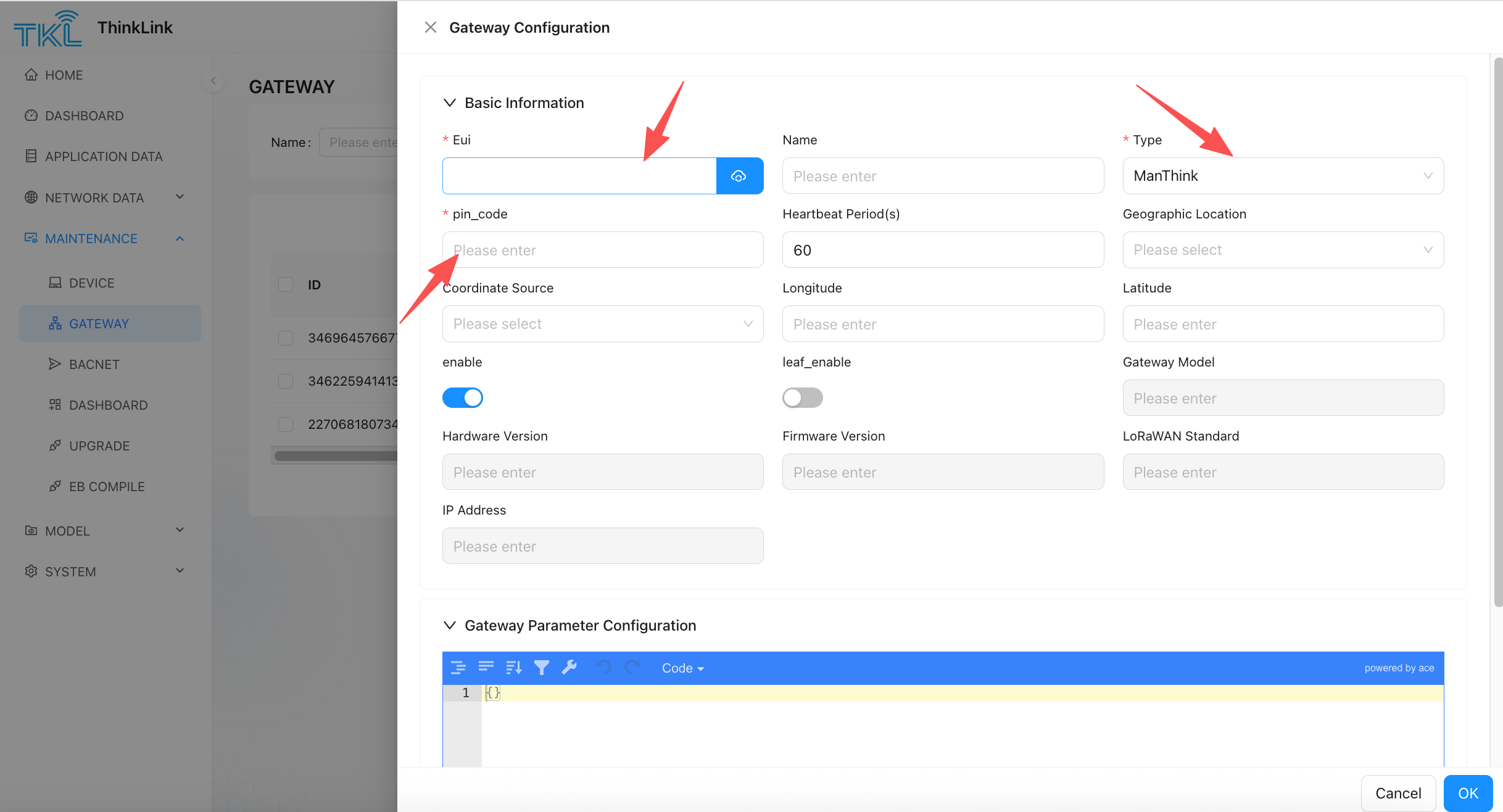
- Enter TKL platform, click [new Gateway] button.
- Fill in the basic gateway information in the pop-up form:
- select Gateway Type:
- if used Vendor Gateway, please
typedrop-down menu to selectManThink. - If used third-party gateways that support the GWMP protocol, please select
GWMP.
- if used Vendor Gateway, please
- select Gateway Type:
- Fill in
gwEuiAnd correspondingpincode(OnlyManThinktype required). - For selection
GWMPtype of third-party gateway, make sure that protocol configuration points to the address and port of the currently deployed ThinkLink server. - Please confirm that the gateway device is in ** online Status** so that TKL can communicate with it and complete authentication.
[Important Note]: when adding a vendor gateway, TKL will establish real-time communication with the gateway to verify
pincodeand equipment legality. If the gateway is offline, the ADD operation will fail.
After the gateway is added, the gateway appears in the Gateway list. You can perform status monitoring, parameter configuration, and data management on the platform.
1.4. ManThink Gateway Management
Once a ManThink gateway has been added, the following actions are available from the gateway list:
View IP Address
Click the Edit button on the gateway entry to open the configuration form. The IP Address field shows the gateway's current IP address.
The IP address is reported automatically when the gateway comes online. Use this to confirm the gateway's actual network address during on-site troubleshooting.
Gateway Upgrade
Click the More button on the gateway entry and select Gateway Upgrade to push a firmware package to the gateway. Upgrade packages must be uploaded in advance via System Platform → Gateway Upgrade Package.
Status Trend (View Offline Periods)
Click Status Trend on the gateway entry to view an online/offline timeline chart for the selected time range. Use this to pinpoint when the gateway went offline and assist with fault diagnosis.
The above covers common ManThink gateway operations available within the ThinkLink platform. For gateway-side configuration, parameter settings, or other advanced features, please contact your gateway vendor for support.