1. Thing Model
The Thing Model is the core module in the ThinkLink platform for defining device functionality and data structures. Through the Thing Model, raw data from the LoRaWAN Network Server (NS) or other protocol sources can be parsed into standardized application-layer data (such as telemetry data and attribute information), and visualized in tables, charts, or dashboards.
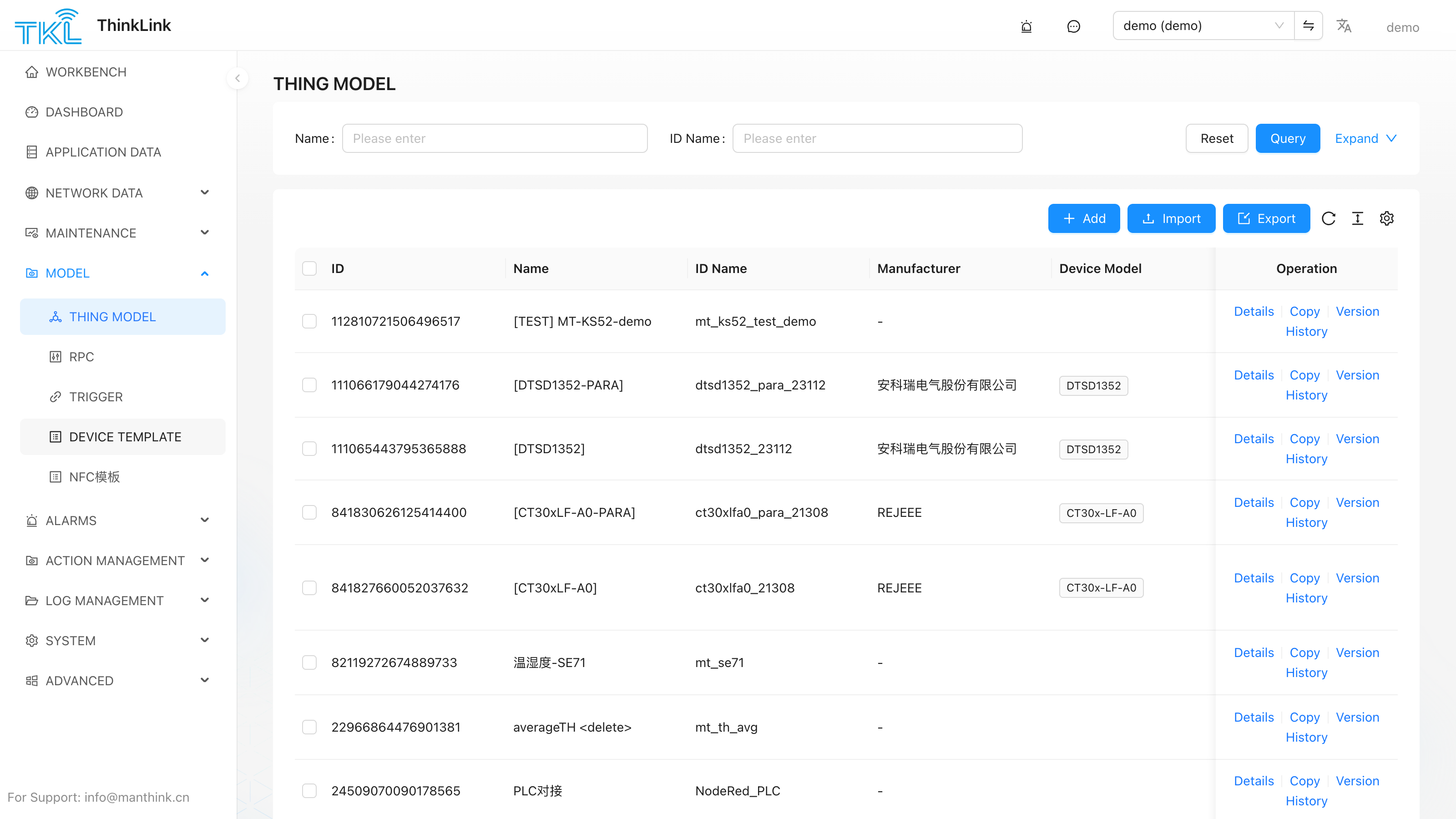
1.1. Create a Thing Model
When creating a new Thing Model, you must enter a unique name as its identifier. This name cannot be repeated across the system. It is recommended to name it based on the device type or function (for example: TempHumidity_Sensor_ModelA).
After creation, configure a parsing script to decode and map incoming uplink data.
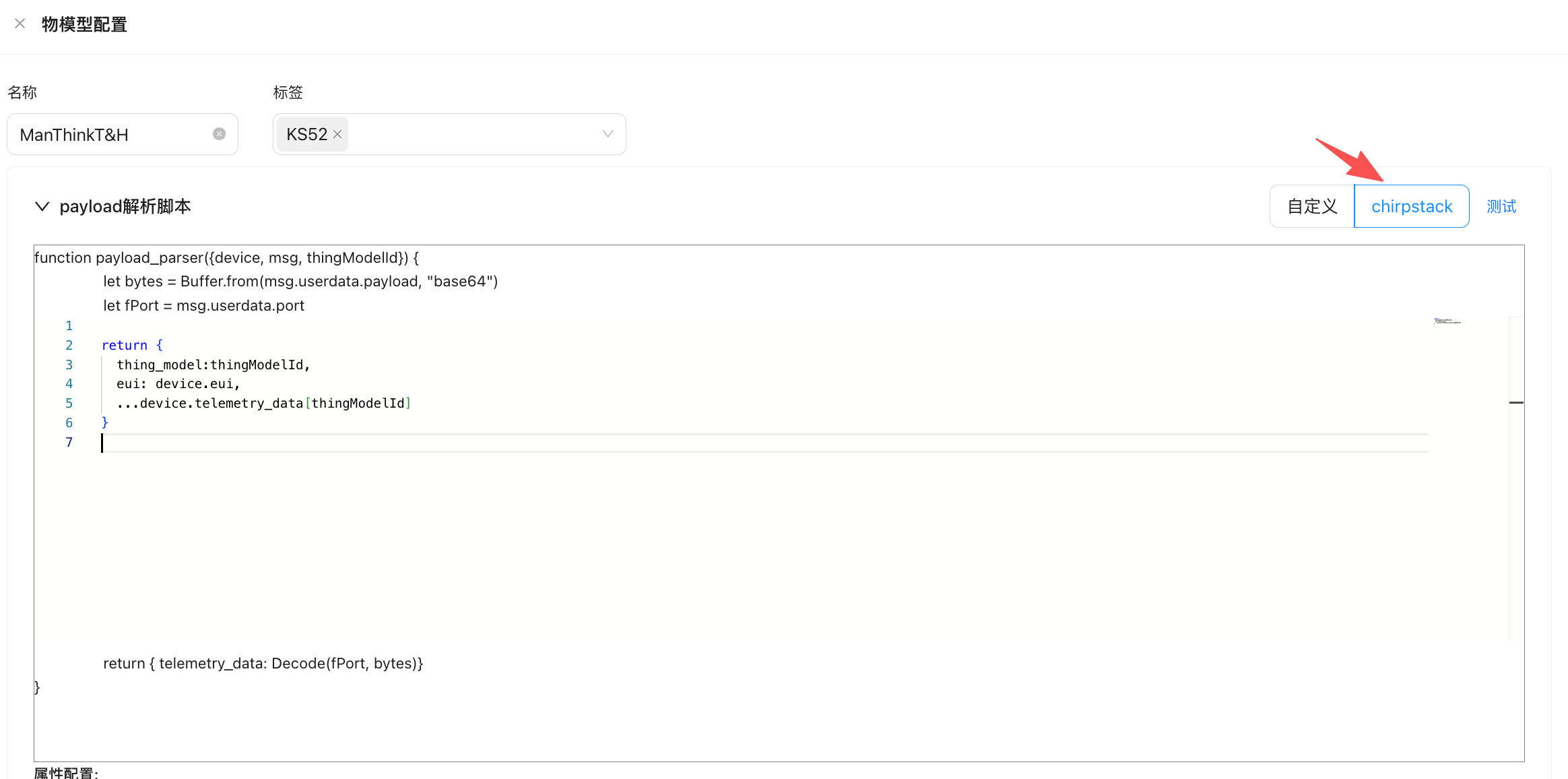
1.2. Parse Script
The parsing script converts raw data sent from an external platform to ThinkLink into structured telemetry data (telemetry_data) and shared attributes (shared_attrs), for downstream processing and visualization.
1.2.1. Sandbox Environment & Constraints
The parsing script runs inside a vm2 sandbox, fully isolated from the Node.js host process. The following constraints are enforced at runtime — violating them will throw an exception or silently drop the parse result.
Runtime limits
| Constraint | Value | Details |
|---|---|---|
| Execution timeout | 1000 ms | The script is killed after 1 second; the uplink is dropped for this parse cycle. |
eval | ❌ Disabled | Dynamic code execution via eval is blocked. |
| WebAssembly | ❌ Disabled | Loading or executing .wasm modules is blocked. |
async / await | ❌ Not supported | The parse script is synchronous; asynchronous operations are not available. |
require / import | ❌ Not supported | No Node.js built-in modules or third-party packages can be imported. |
process, path, fs, etc. | ❌ Not available | These Node.js globals are not injected; referencing them throws ReferenceError. |
setTimeout / setInterval | ❌ Not available | Timer globals are not present in the sandbox. |
console | ❌ Not available | Use the built-in Thing Model log feature for debugging instead. |
Buffer method restrictions
The sandbox injects a restricted Buffer object (SafeBuffer). Only the following static methods are available:
| Allowed method | Description |
|---|---|
Buffer.alloc(size) | Allocate a zero-filled Buffer |
Buffer.from(...) | Create a Buffer from a string, array, or ArrayBuffer |
Buffer.isBuffer(obj) | Check whether a value is a Buffer |
Buffer.byteLength(str, enc) | Compute byte length |
Buffer.compare(a, b) | Compare two Buffers |
Buffer.concat(list, totalLen?) | Concatenate multiple Buffers |
Buffer.allocUnsafe() and Buffer.allocUnsafeSlow() are explicitly blocked. Instance read/write methods (readUInt8, writeUInt16LE, etc.) work normally.
All available sandbox globals
The table below lists every name that is available inside the script (i.e., everything the platform injects into the sandbox):
| Name | Source | Notes |
|---|---|---|
device | Platform-injected, read-only | Device object (vm.freeze); property assignments are silently ignored. |
msg | Platform-injected | Raw uplink message for this cycle. |
noticeAttrs | Platform-injected | Attribute-change flags that triggered this parse. |
thingModelId | Platform-injected | ID of the current Thing Model. |
org_params | Platform-injected, read-only | Organization-level environment variables (vm.freeze). |
subDevices | Platform-injected, read-only | Sub-device cache map for the parent device (vm.freeze). |
env | Platform-injected, read-only | Environment variables declared by mounted plugins (advanced). |
plugins | Platform-injected, read-only | Plugin instances mounted on this Thing Model (advanced). |
Buffer | Platform-injected | Restricted SafeBuffer (see above). |
BufferTKL / PayloadParser / MSparser / Utils / TriggerHelper / RPCHelper | tklHelper, read-only | Platform utility library (vm.freeze). See tklHelper. |
Note:
deviceand all tklHelper classes are injected viavm.freeze. Assigning to their properties inside the script will not throw but will have no effect and will not modify platform state. To write data back to the platform, use the script's return value.
1.2.2. Input Parameters
When the script is executed, the system automatically injects the following parameters:
| Parameter | Type | Description |
|---|---|---|
device | Object | The device object that received the message (frozen, read-only). Key properties — see device object properties below. Use device.telemetry_data[thingModelId] to read the previous telemetry snapshot. Access to non-existent properties returns undefined — use optional chaining (?.). |
msg | Object | The raw packet from the LoRaWAN Application Server (AS). For MQTT-connected devices, this is the JSON message body. |
thingModelId | String | The unique ID of the current Thing Model, used to access historical telemetry data for this model on the device. |
noticeAttrs | Object | Indicates which attributes changed and triggered the notification event, useful for conditional logic. |
org_params | Object | Organization-level (tenant-level) environment variables maintained under System Management → Server Configuration → Org Params. See Server Configuration §1.6. |
Function signature:
function payload_parser(device, msg, thingModelId, noticeAttrs, org_params) {
    // ...
}
device object properties:
| Property | Type | Description |
|---|---|---|
eui | string | Device EUI (16-char hex, globally unique primary key). |
name | string | Device name. |
device_type | string | Device type: "NORMAL" (direct LoRaWAN/MQTT), "SUB_DEVICE" (auto-generated by parent), "VIRTUAL" (asset/aggregator). |
data_from | string | Data source: "LoRaWAN" (via NS uplink) or "OTHER" (direct MQTT). |
parent | string | null | Parent device EUI (SUB_DEVICE only). |
online | boolean | Whether the device is currently online. |
active_time | string | Timestamp of the last uplink (ISO 8601). |
update_time | string | Timestamp of the last device record update (ISO 8601). |
heart_period | number | Heartbeat detection period (seconds). |
shared_attrs | object | Attributes synchronized bidirectionally with the device (e.g. config params, firmware info, calibration values). |
server_attrs | object | Platform-side-only attributes (device cannot read). Used for alarm thresholds, linked EUIs, downlink records, etc. |
mac_attrs | object | LoRaWAN MAC-layer attributes (band, ADR, etc.). Empty object for non-LoRaWAN devices. |
telemetry_data | object | Latest telemetry snapshot per Thing Model, keyed by thingModelId. Use device.telemetry_data[thingModelId] to access. |
thing_model | string[] | Mounted Thing Model ID array. |
rpc | string[] | Mounted RPC model ID array. |
trigger | string[] | Mounted Trigger model ID array. |
tags | string[] | Device tag array, used for filtering and grouping. |
tenant_code | string | Tenant identifier. |
real_time_storage | boolean | Whether real-time history data storage is enabled. |
location_id | string | null | Bound geographic location ID. |
remark | string | null | Free-text remarks. |
Note:
deviceis injected viavm.freeze. Assignments to its properties inside the script have no effect. Accessing non-existent properties returnsundefined— use optional chaining (?.) to avoid errors.
Tip: If you already have a parsing script written for ChirpStack, you can select ChirpStack Compatibility Mode. ThinkLink has adapted its interface to be compatible, so you can paste the original code and it will run without modification.
1.2.2. Reference Parsing Script
Below is a typical parsing script for a LoRaWAN temperature and humidity sensor. It handles binary payloads on port 11 with a fixed length of 15 bytes. Device configuration parameters (such as COV threshold and reporting interval) are sent and received on port 214, and are parsed into shared attributes.
let    payload = Buffer.from(msg?.userdata?.payload, "base64");
    let    port=msg?.userdata?.port || null;
    function parseSharedAttrs(payload) {
        if (port!=214||payload[0]!=0x2F) { return null}
        let shared_attrs = {};
        if (payload.length<5) { return null}
        shared_attrs.content = payload.toString('hex');
        let size=payload.length-4
        let regAddress=payload[2]
        for (let i=0; i<size; i++) {
            regAddress=payload[2]+i
            switch (regAddress) {
                case  58:
                    if  ( size<(2+i) ) { break }
                    shared_attrs.period_data = payload.readUInt16LE(4+i)
                    break;
                case 142:
                    if  ( size<(2+i) ) { break }
                    shared_attrs.period_measure = payload.readUInt16LE(4+i)
                    break;
                case 144:
                    if  ( size<(1+i) ) { break }
                    shared_attrs.cov_temperatrue = payload.readUInt8(4+i)*0.1
                    break;
                case 145:
                    if  ( size<(1+i) ) { break }
                    shared_attrs.cov_humidity = payload.readUInt8(4+i)*0.1
                    break;
                default: break
            }
        }
        if (Object.keys(shared_attrs).length == 0) {
            return null
        }
        return shared_attrs;
    }
    function parseTelemetry(payload){
        if (port!=11||payload[0]!=0x21||payload[1]!=0x07||payload[2]!=0x03||payload.length !=15){
            return null
        }
        let telemetry_data = {};
        telemetry_data.period_data =payload.readUInt16LE(5)
        telemetry_data.status ="normal"
        if ((payload[7]&0x01)!=0){  telemetry_data.status ="fault" }
        telemetry_data.temperatrue=Number(((payload.readUInt16LE(8)-1000)/10.00).toFixed(2))
        telemetry_data.humidity=Number((payload.readUInt16LE(10)/10.0).toFixed(2))
        let vbat=payload.readUInt8(12)
        telemetry_data.vbat=Number(((vbat*1.6)/254 +2.0).toFixed(2))
        telemetry_data.rssi=msg.gwrx[0].rssi
        telemetry_data.snr=msg.gwrx[0].lsnr
        return telemetry_data
    }
    let tdata=parseTelemetry(payload)
    let sdata=parseSharedAttrs(payload)
    if (tdata?.period_data!=null){
        if (sdata===null) {sdata={}}
        sdata.period_data = tdata.period_data
    }
    return {
            sub_device:null,
            telemetry_data: tdata,
            server_attrs: null,
            shared_attrs: sdata
    }
1.2.3. Key Parameter Reference
1.2.3.1. device – Device Object
Represents the device instance that received the message, including all its known states and attributes:
device.telemetry_data[thingModelId]: Retrieves the most recent telemetry data packet for the specified Thing Model on this device.- Multiple Thing Models are supported: if a device is associated with more than one Thing Model, use different
thingModelIdvalues to access each model's historical data independently.
1.2.3.2. msg – Raw Message Data
The standard LoRaWAN AS interface data format received by ThinkLink is as follows:
{
  "if": "loraWAN",
  "gwrx": [
    {
      "eui": "5a53012501030011",
      "chan": 0,
      "lsnr": 13.2,
      "rfch": 1,
      "rssi": -92,
      "time": "2025-09-17T03:51:04.8516751Z",
      "tmms": 0,
      "tmst": 2845948222,
      "ftime": 0
    }
  ],
  "type": "data",
  "token": 14892,
  "moteTx": {
    "codr": "4/5",
    "datr": "SF7BW125",
    "freq": 471.5,
    "modu": "LORA",
    "macAck": "",
    "macCmd": ""
  },
  "geoInfo": {
    "type": "gw:wifi",
    "accuracy": 50,
    "altitude": 0,
    "latitude": 34.19925,
    "longitude": 108.8659
  },
  "moteeui": "6353012af1090498",
  "version": "3.0",
  "userdata": {
    "port": 11,
    "class": "ClassA",
    "seqno": 18654,
    "payload": "IQcDDG4PAADWBIsC34IG",
    "confirmed": false
  }
}
Common field access patterns:
- Payload bytes:
msg.userdata.payload(Base64-encoded) - FPort:
msg.userdata.port - RSSI:
msg.gwrx[0].rssi - SNR:
msg.gwrx[0].lsnr - Timestamp:
msg.gwrx[0].time
For non-LoRaWAN data sources (such as JSON data reported over MQTT), access fields directly by JSON key path.
1.2.3.3. thingModelId – Thing Model Identifier
Used to access historical data for a specific Thing Model associated with the device. For example:
let lastData = device.telemetry_data['temp_humi_v1'];1.2.3.4. noticeAttrs – Change Notification Flags
This object indicates whether the current message was triggered by an attribute change:
| Field | Type | Description |
|---|---|---|
server_attrs | Boolean | true if server-side attributes have changed |
shared_attrs | Boolean | true if shared attributes have changed |
telemetry_data | Boolean | true if telemetry data has been updated |
Use this to gate specific logic — for example, only write to a database when telemetry data is updated.
1.2.3.5. Return Value Format
The parsing script must return an object conforming to the following structure:
return {
    sub_device: null,
    telemetry_data: {    // parsed telemetry data; set to null if not applicable
        temperature: 23.5,
        humidity: 60.2,
        rssi: -85
    },
    server_attrs: null,  // server-side attributes; typically null
    shared_attrs: {      // shared attributes (optional); used for config such as intervals
        heartbeat_interval: 30
    }
};
1.2.3.6. Return Value Field Definitions
| Field | Default | Description |
|---|---|---|
shared_attrs | null | Shared attributes — persistent data stored at the device level, accessible by other system modules such as automation rules and alarm evaluations. |
sub_device | null | Sub-device identifier. If a parent device (e.g., a DTU) collects data from sub-devices via RS-485 or M-Bus, set this field to the sub-device's communication address (e.g., its 485 address). ThinkLink will create a virtual sub-device in device management and assign it a unique EUI automatically. |
telemetry_data | null | Telemetry data — real-time operational data and application-layer parsed results. Used in dashboards, trend charts, and historical data queries. |
server_attrs | null | Server-side attributes — metadata or configuration that does not need to be stored on the device. Kept only on the ThinkLink server, suitable for advanced feature extensions. |
Note: Any field may be null to indicate no data of that type in the current uplink. Populate fields appropriately based on your use case to ensure full system functionality. All values must conform to the key-value format using valid strings, numbers, booleans, or objects.
1.3. Display Fields
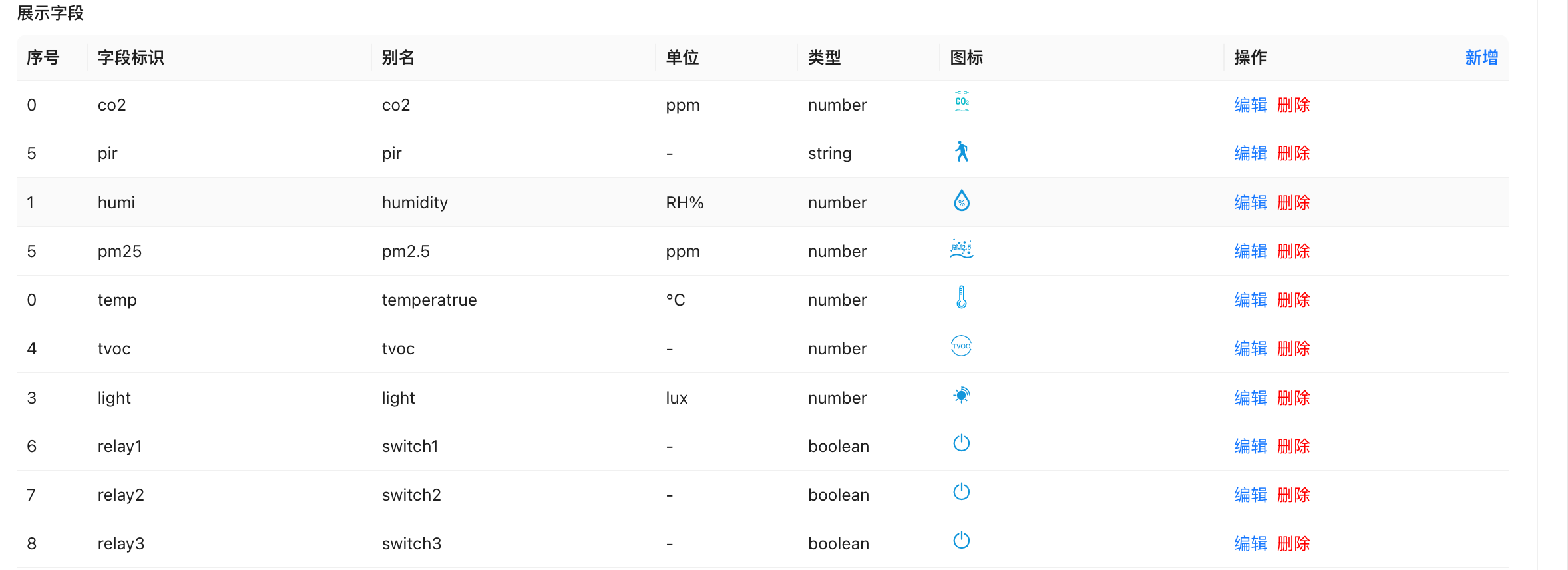
The Display Fields configuration defines which data items appear in application-layer views such as tables, cards, and dashboards.
- Telemetry Field: Must match a field name present in the device's
telemetry_dataoutput exactly. - Order: Controls the display position of the field in table or card views.
- Alias: The label shown in the front-end UI, improving readability for end users.
- Unit: The unit of measurement for this field's value (e.g., °C, %, m³).
- Type: Select based on the actual data type. Use
numberfor numeric data to enable formatted display. - Icon: Optional icon for visual representation. SVG format is supported; download icons from iconfont.cn and embed the SVG code directly.
Tip: Once display fields are correctly configured, the system will automatically extract the corresponding fields from the Thing Model's parsed output and render them in the application UI.
1.4. BACnet Field Configuration
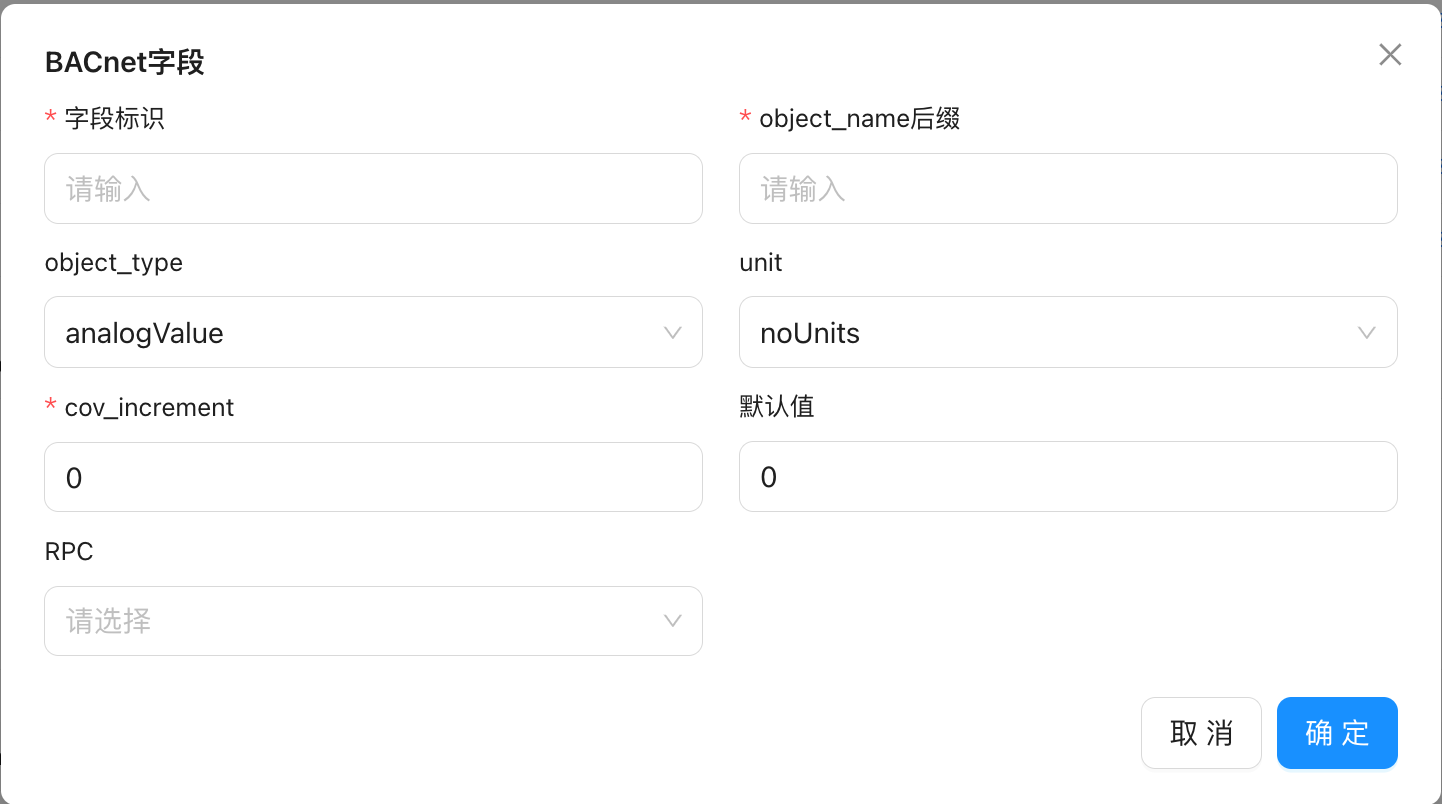
When exposing device data via the BACnet protocol, each data field must be mapped and configured. The following describes each parameter when adding a BACnet field:
field_name
The field identifier of the data item. Must match the field identifier defined in the Thing Model exactly, to establish the mapping between Thing Model data and BACnet object properties.object_name_suffix
A name suffix. ThinkLink concatenates the device's EUI with this suffix to generate a uniqueobject_name, ensuring each BACnet object is uniquely identifiable on the network.object_type
The BACnet object type for this data item, such as Analog Input or Binary Output. Choose based on the nature of the data.unit
The unit of measurement for this data item, ensuring it displays correctly in BACnet clients such as a BAS or YABE.cov_increment
The Change of Value (COV) threshold. When the data value changes by more than this amount, the system proactively sends a COV notification. Relevant for systems that support COV subscriptions.default_value
The initial value of the data item, used for display and responses before the device reports any data.RPC
Associates a remote control function with this field. If you need to write to this field or issue commands, configure the corresponding RPC in the RPC model first, then select it here.
1.4.1. Viewing BACnet Data with YABE
YABE (Yet Another BACnet Explorer) is a widely used BACnet device inspection and browsing tool. After configuration, connect YABE to the ThinkLink system to discover published BACnet devices, inspect their object properties, and verify that data is being published correctly.
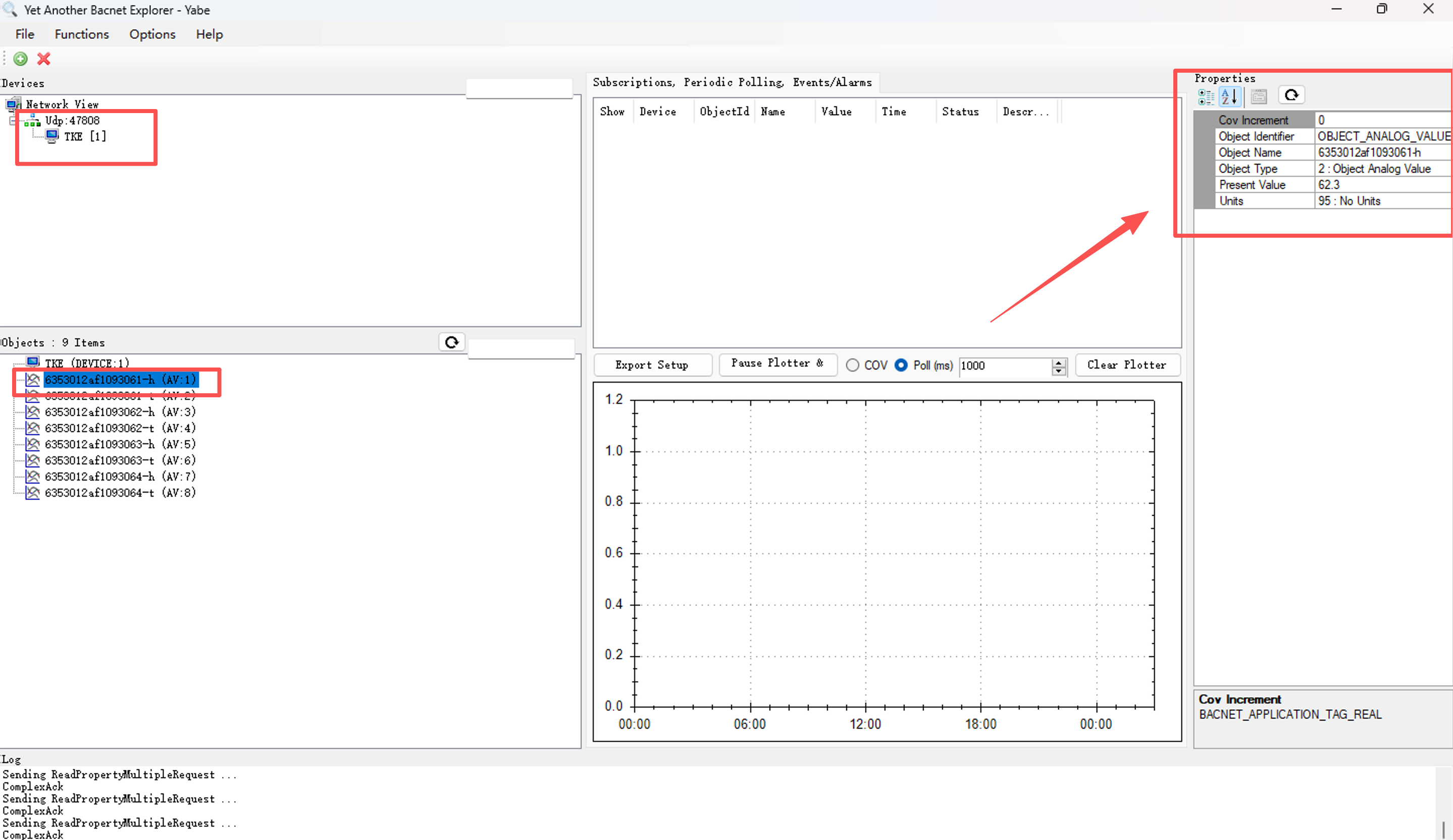
1.4.2. Generating a BACnet Point List
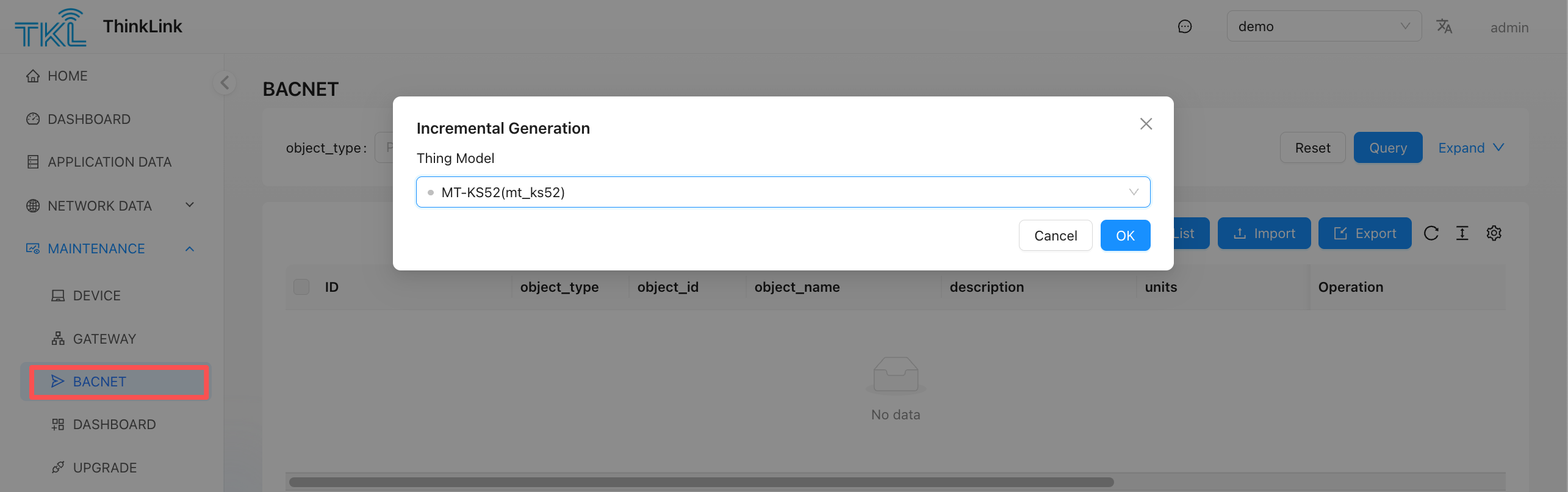
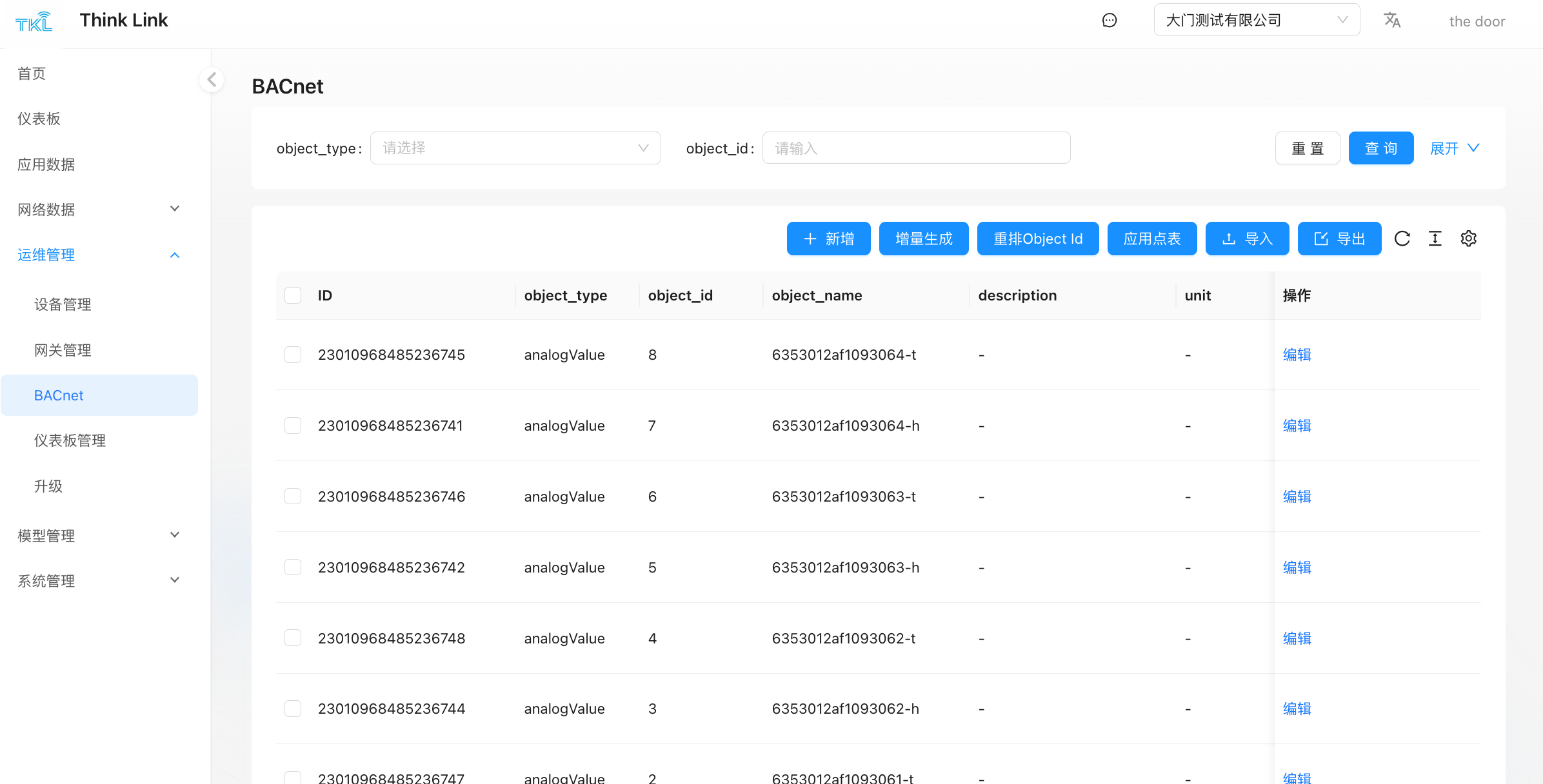
If a BMS (Building Management System) requires formal deployment, a standard BACnet point list file is typically needed for system integration and commissioning.
- Navigate to Maintenance → BACnet.
- Click the Incremental Generation button.
- In the dialog, select the target Thing Model.
- Confirm. The system will automatically generate point list entries for all BACnet fields defined under that Thing Model.
The generated point list includes: object type, object instance number, object name, description, data type, unit, and read/write permissions — ready to be handed off to a third-party system for integration.
1.5. Home Assistant Integration
- [Note 1] Enabling the feature: The Home Assistant feature must be manually enabled on each device's configuration page before ThinkLink will send discovery messages for that device. When the feature is disabled, no discovery messages are sent to Home Assistant.
- [Note 2] Applying configuration changes: After modifying the Home Assistant field configuration, go to ThinkLink's Server Configuration page and click "Re-register all devices" to push the updated configuration to Home Assistant.
1.5.1. Adding Home Assistant Fields
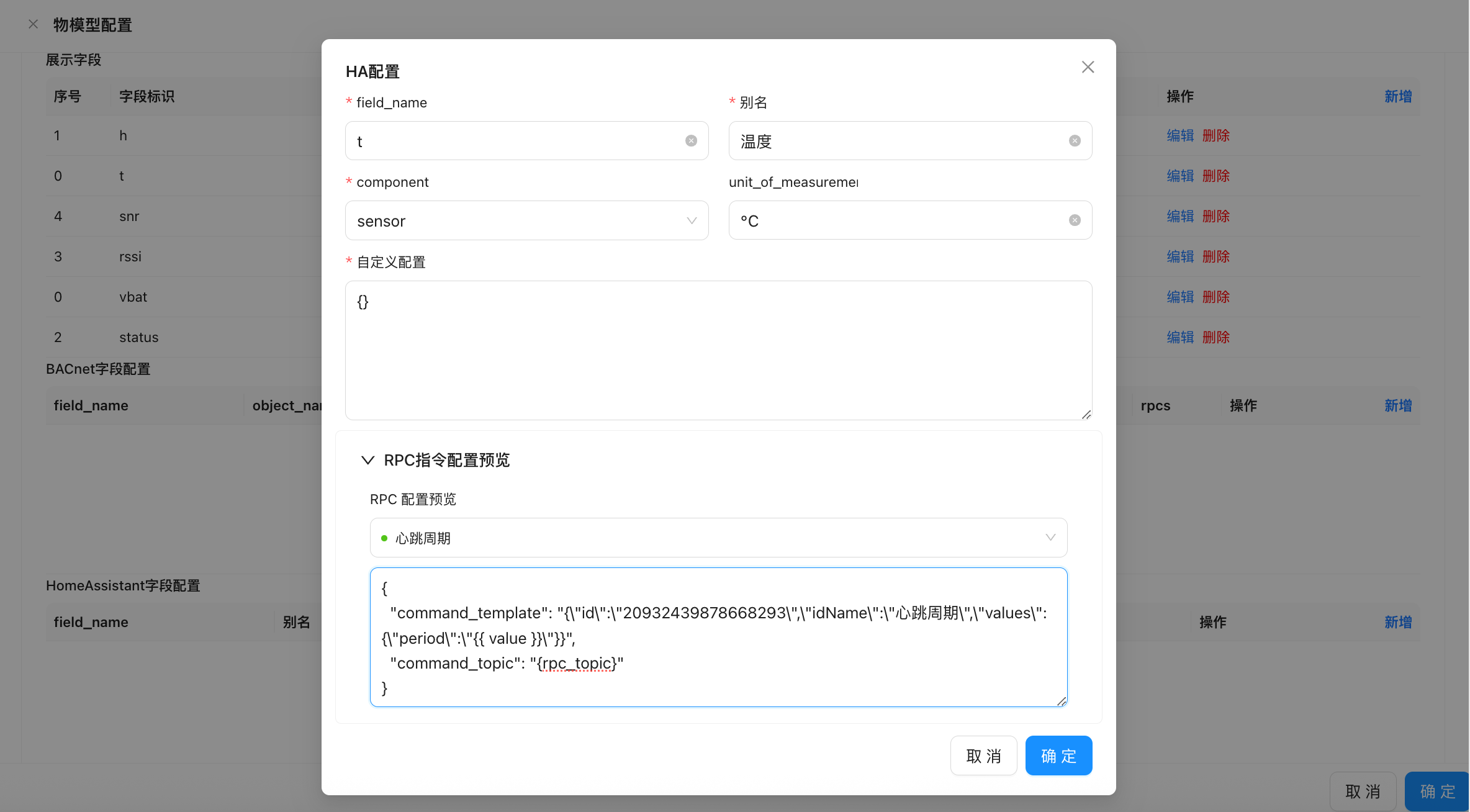
| Field | Description |
|---|---|
field_name | The field identifier. Must match the identifier defined in the Thing Model for correct data mapping. |
name | The display name shown in the Home Assistant interface. |
component | The Home Assistant component type. ThinkLink currently supports sensor natively. |
unit_of_measurement | The unit of measurement for this field's value (e.g., °C, %, Pa). |
1.5.2. Supported Device Types
ThinkLink currently supports native integration only for the sensor component type in Home Assistant.
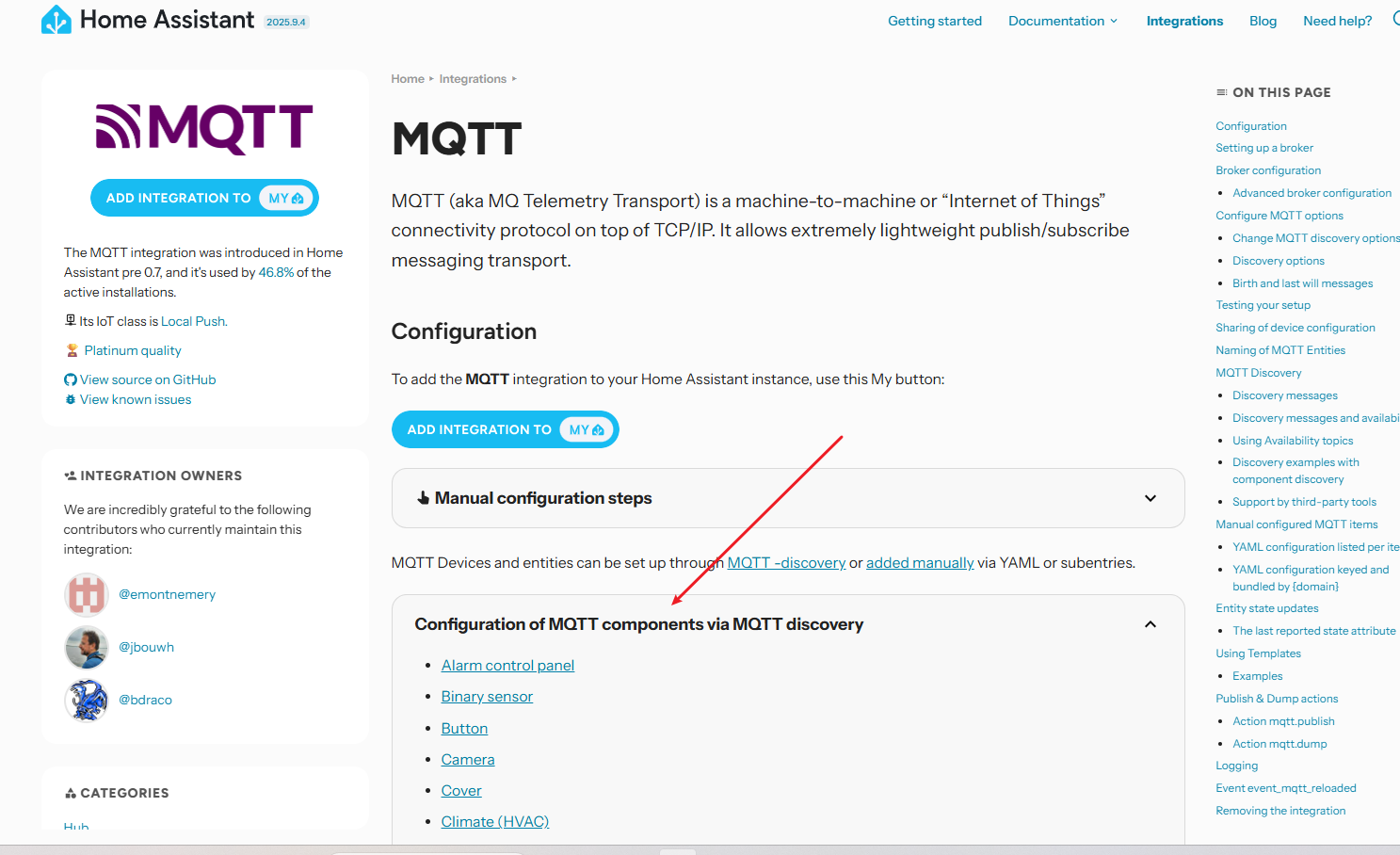
For other entity types (such as switch, light, or binary_sensor), define them in Home Assistant's custom MQTT configuration. Refer to the MQTT Discovery guide in the official Home Assistant documentation: https://www.home-assistant.io/integrations/mqtt/#mqtt-discovery.
By following the MQTT Discovery protocol, you can manually or programmatically create entities of any supported type.
1.5.3. Viewing Devices in Home Assistant
Once configuration is complete:
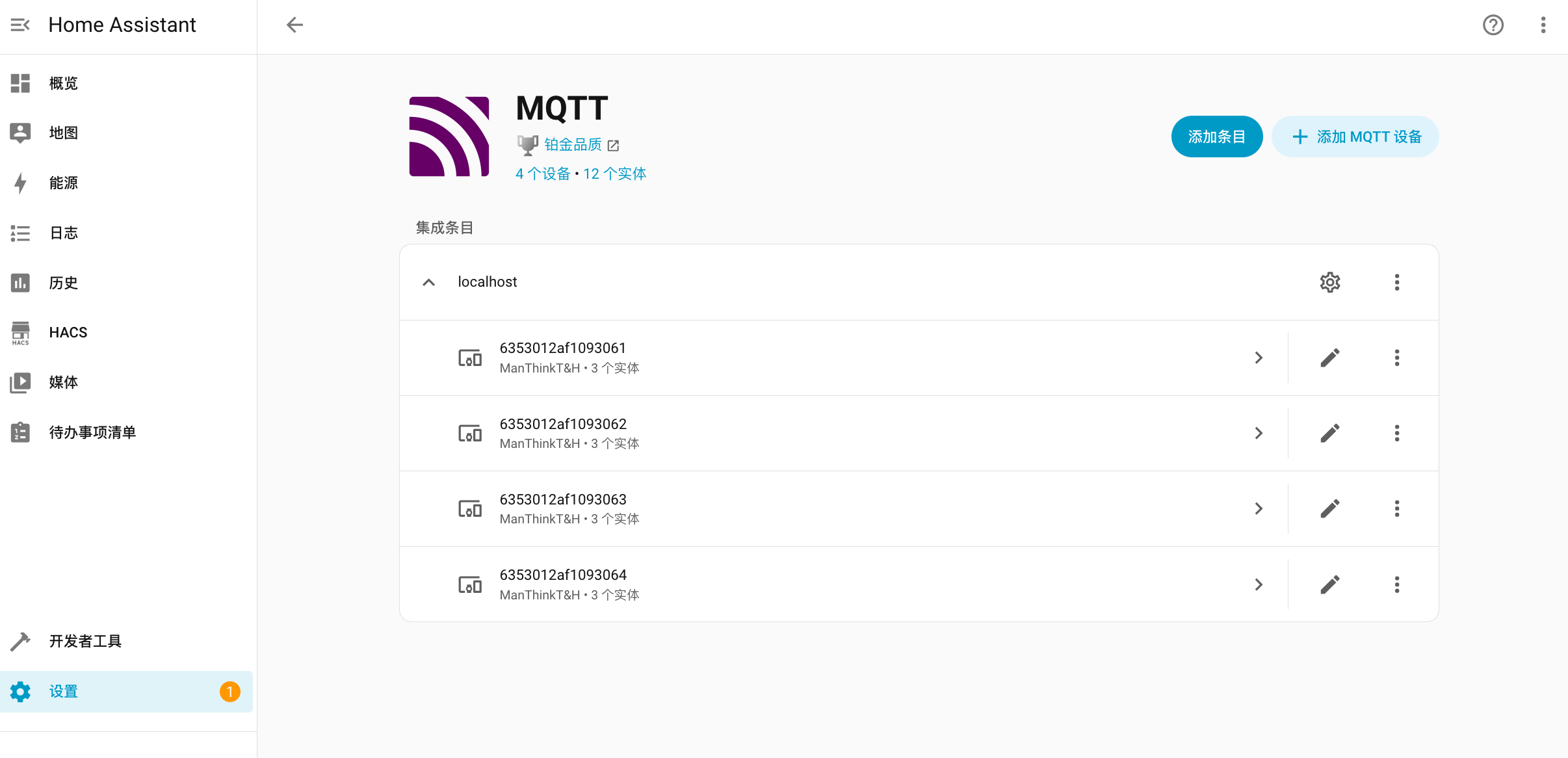
- Ensure the MQTT integration is added and connected to the same MQTT broker used by ThinkLink.
- ThinkLink will automatically publish device discovery messages to the MQTT topic (using the
homeassistant/prefix by default). - Go to Settings > Devices & Services > MQTT in Home Assistant to see devices and sensors automatically discovered and registered by ThinkLink.
From there, devices appear in your dashboard and can be monitored, used in automations, or configured for alerts.
1.6. Associating a Thing Model with a Device
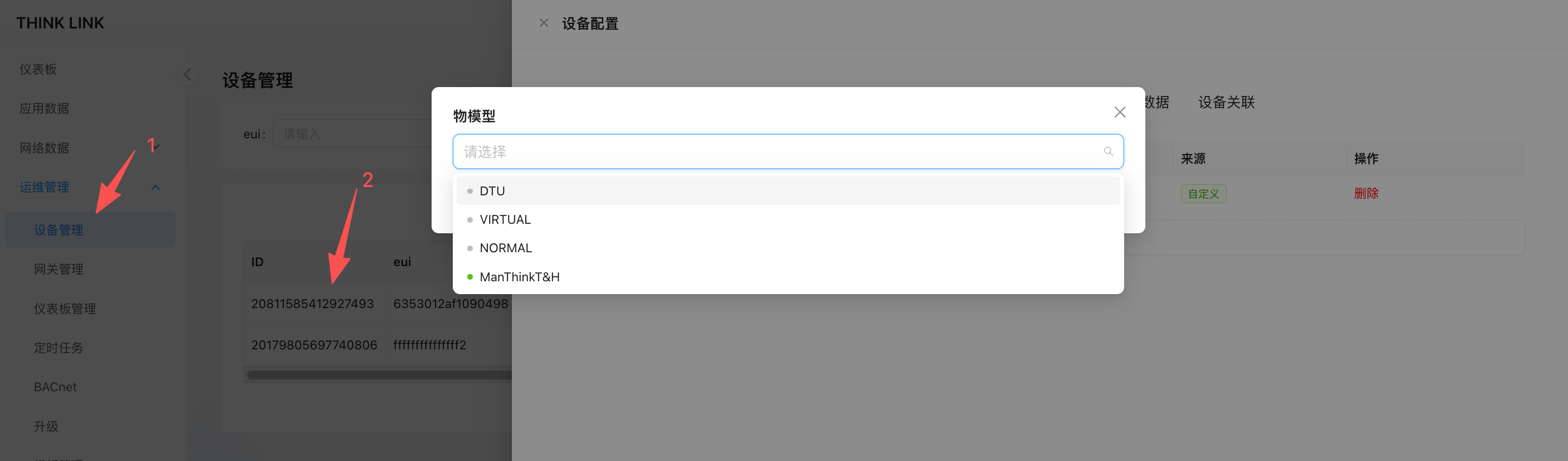
- Navigate to Maintenance → Device Management and locate the target device.
- Click the Details button to open the device detail page.
- Switch to the Thing Model tab and click Add.
- Select the Thing Model from the list. After confirming, the association is complete.
Note: To associate the same Thing Model with multiple devices at once, use the Template feature for bulk configuration.
1.6.1. Viewing Application Data
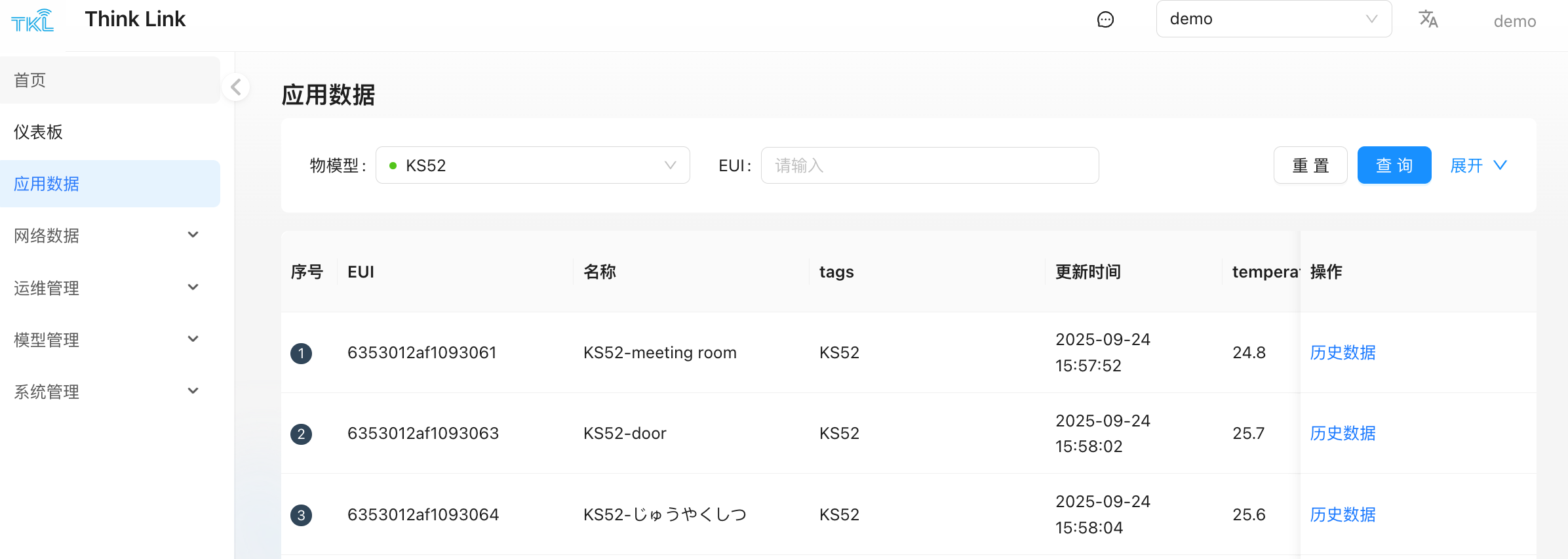
- Go to the Application Data page in the left navigation menu.
- Select the target Thing Model at the top of the page. The system will load all device data bound to that model.
- When a device sends uplink data, the system parses it through the Thing Model. The parsed application-layer data is displayed here.
- Click Historical Data to switch to the historical view, where data can be explored as a line chart or data table over a selected time range.
1.6.2. Viewing Data Through Device Properties
- After a device reports shared attribute data:
- Go to Maintenance → Device Management, select the device, and click Details.
- Switch to the Shared Attributes tab to view current attribute values and their last update times.
- After a device reports telemetry data:
- Go to the same Details page for the target device.
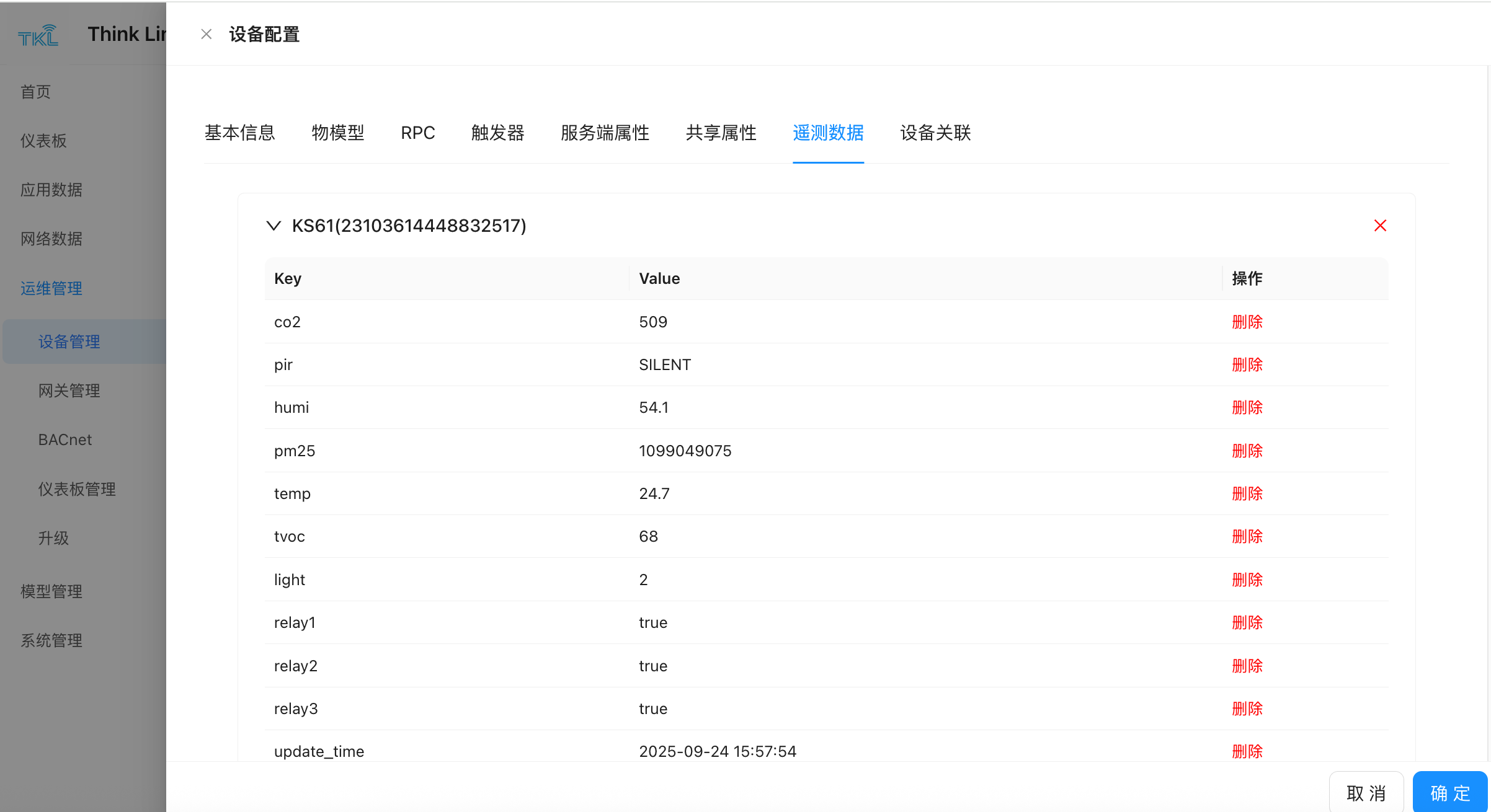
- Switch to the Telemetry Data tab. The system displays the most recent telemetry update for a quick view of device status.
Version History & Restore
Every time you save a Thing Model, the platform records a version snapshot. Click History Versions in the editor to browse earlier versions. Each entry offers:
- Detail — view the snapshot's content (and compare it against neighboring versions).
- Restore — roll the current value back to that snapshot. Restoring creates a new version entry (so nothing in the history is lost) and reloads the list to the first page. A confirmation prompt notes that restoring produces a new version.
The same History Versions / Restore controls are available on the RPC Model, Trigger Model, and Forwarder Script editors.
Testing the parser without a device
When you only want to confirm that a parsing script decodes its input correctly — for example when wiring up an NFC Template — the Test action accepts a skipDeviceCheck flag. With skipDeviceCheck = true, the platform injects a synthetic placeholder device instead of looking up a real one by EUI, so the test runs even when no matching device exists. Leave it unset for normal testing, where the device must exist (otherwise the platform returns Device not found).