Scheduled Tasks
Scheduled Tasks define execution schedules using cron expressions. They act as the time trigger for Device Actions.
A Scheduled Task does not directly operate on devices. It only takes effect when bound to one or more Device Action events, which carry the actual command and target device list.
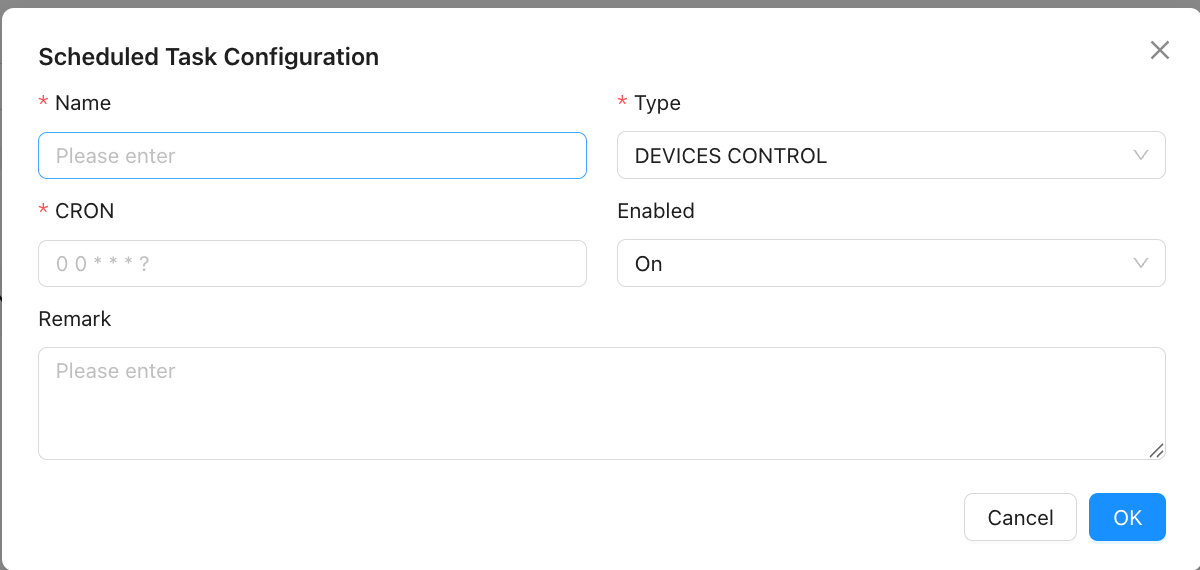
Configuration Fields
| Field | Description |
|---|---|
| Name | Custom label for identification |
| Type | Fixed as "Devices Control" |
| Enable | Disabling pauses the task; bound Device Actions will no longer be triggered |
| Cron Expression | Defines the schedule; supports second-level precision (6-field format) |
| Remark | Optional description |
Cron Expression Format
ThinkLink uses a 6-field cron expression in the following order:
Second Minute Hour Day Month Weekday| Field | Range | Wildcards |
|---|---|---|
| Second | 0–59 | , - * / |
| Minute | 0–59 | , - * / |
| Hour | 0–23 | , - * / |
| Day | 1–31 | , - * ? / |
| Month | 1–12 | , - * / |
| Weekday | 0–6 (0=Sunday) | , - * ? / |
Common Examples
| Schedule | Cron Expression |
|---|---|
| Every minute | 0 * * * * ? |
| Every hour on the hour | 0 0 * * * ? |
| Daily at 2:00 AM | 0 0 2 * * ? |
| Daily at 8:30 AM | 0 30 8 * * ? |
| Every Monday at 8:00 AM | 0 0 8 ? * 1 |
| 1st of every month at midnight | 0 0 0 1 * ? |
| Every 5 minutes | 0 */5 * * * ? |
| Every 30 seconds | */30 * * * * ? |
Note: Day and Weekday fields cannot both be specified — one of them must be
?.
Configuration Workflow
- Go to Scheduled Tasks and click Add
- Enter a name and write the cron expression (real-time validation is shown in the UI)
- Enable the task and save
- Go to Device Action and bind the new task to the relevant action event
Viewing and Operating Bound Device Executions
Click "Device Executions" in the operation column of the Scheduled Task list to open a card view of the device executions bound to this scheduled task. Each card can be operated directly, without navigating to the Device Action page:
| Action | Description |
|---|---|
| Detail | Open the device execution's detail drawer to view/edit |
| Execute Now | Trigger this device execution once immediately, without waiting for the cron cycle. While running, this button becomes Interrupt to stop the current batch dispatch |
| Enable / Disable | Toggle the device execution's enable state from the "More" menu |
| Logs | Jump to the device execution's execution log page from the "More" menu |
The status dot in the top-left of each card shows the enable state (green = enabled, red = disabled); a running device execution shows its progress.
Notes
- Deleting a Scheduled Task removes the trigger for all Device Actions that reference it — unbind first before deleting
- Editing the cron expression takes effect immediately; the next trigger time is recalculated from the new expression
- Schedules run in the server's local timezone