Gateway Upgrade Package
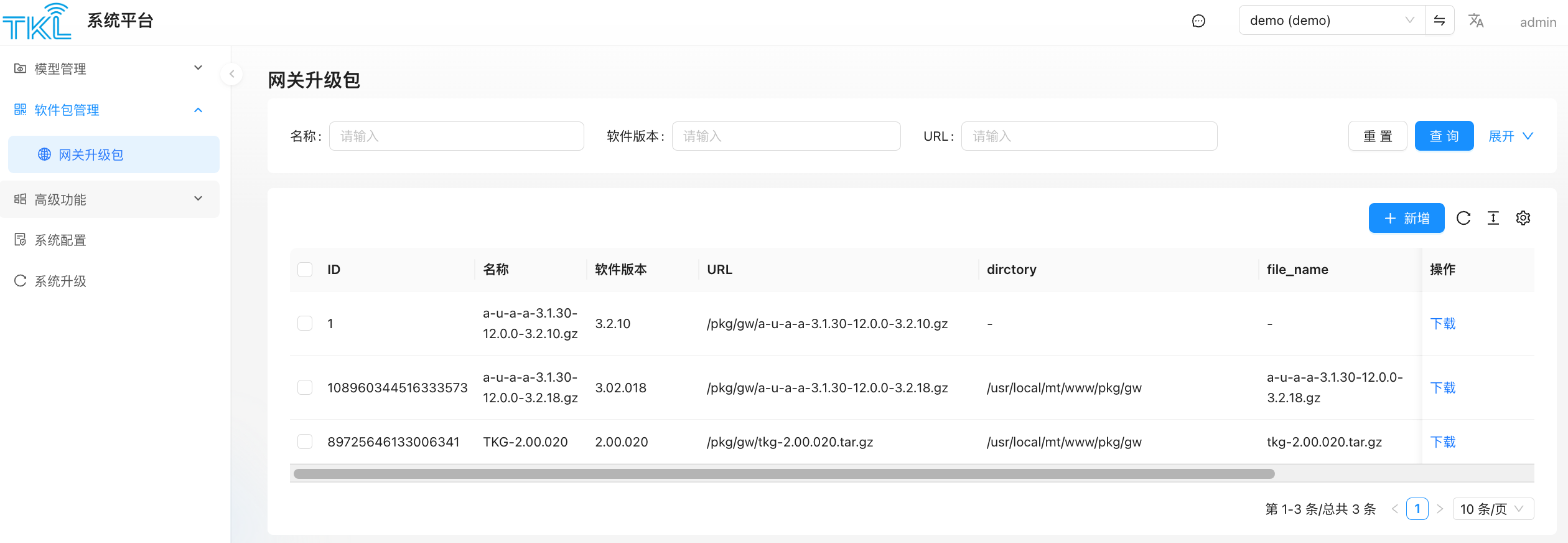
System Platform → Package Management → Gateway Upgrade Package is used to centrally manage gateway firmware packages available to all tenants. After the admin uploads a package here, tenants can pick it from the dropdown on their "Gateway Management → Upgrade" page when upgrading a gateway.
Concept Distinction
| Gateway Upgrade Package (this page) | System Upgrade | |
|---|---|---|
| Upgrade target | The gateway devices managed by ThinkLink | The ThinkLink system itself (TKG/TKE) running on the host |
| Who triggers | Tenants, from "Maintenance → Gateway Management" | The admin, directly in the System Platform |
Field Reference
| Field | Meaning |
|---|---|
| ID | Unique record ID for the package |
| Name | Human-readable name set on upload, recommended to include version (e.g. TKG-2.00.020) |
| Software Version | Firmware version number (e.g. 3.2.10, 2.00.020) |
| URL | Download path, like /pkg/gw/<file>.gz — gateways fetch from here |
| directory | Server-side filesystem path (e.g. /usr/local/mt/www/pkg/gw) |
| file_name | Actual filename on disk |
Operations
Upload a New Package
- Click
+ Addto open the upload dialog. - Choose a
.gzfirmware package and fill in name, software version, etc. - Submit. The file lands on the server's
gwPkgPathdirectory, and a new row appears in the list.
Download an Existing Package
In the operation column click Download. The browser fetches the archive from the listed URL — useful for local verification or backup.
Delete
Select rows → click the "Batch Delete" button in the toolbar. Deletion removes both the DB record and the file on disk.
Pushing the Upgrade to Tenants' Gateways
Once uploaded, tenants will see this package in the dropdown at Maintenance → Gateway Management → Upgrade. Selecting and confirming dispatches it. See Gateway Management and Upgrade for details.