Device Action
Device Action is the batch command scheduling module in ThinkLink. It sends RPC commands to one or multiple devices on a schedule. Typical use cases:
- Timed operations (e.g., reset device state every night at midnight)
- Periodic data collection (e.g., read sensor parameters every hour)
- Bulk attribute updates (e.g., push configuration parameters to all devices)
A Device Action must be bound to a Scheduled Task to take effect. The scheduled task controls when to trigger; the device action controls what command to send and which devices to target.
Configuration Fields
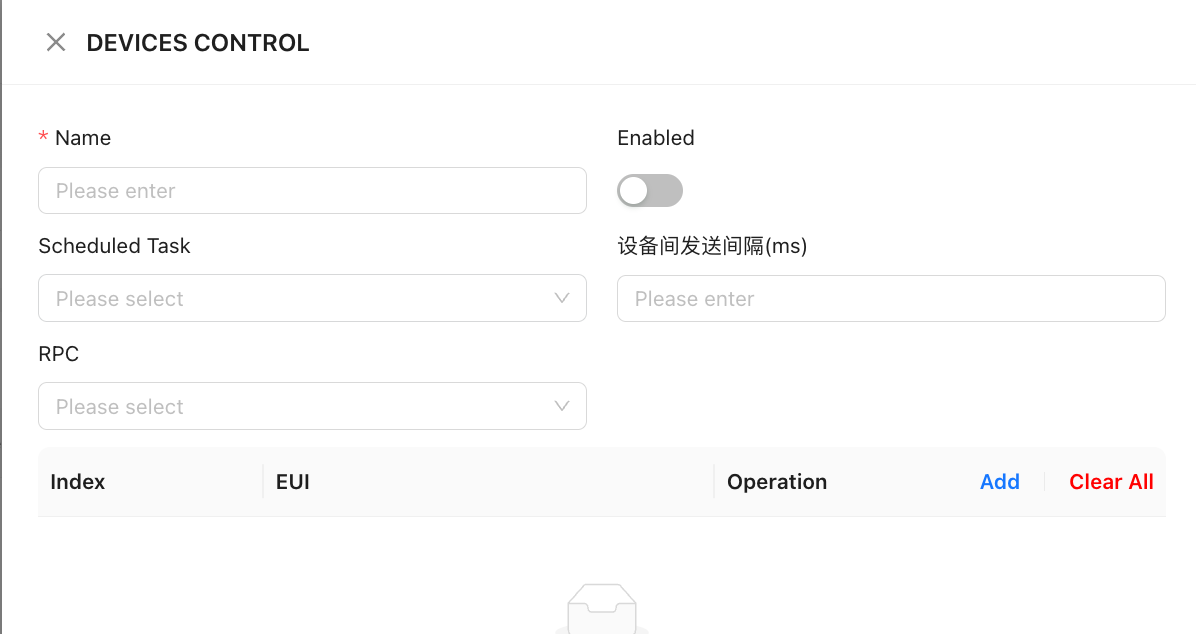
| Field | Description |
|---|---|
| Name | Custom label for identification in the list |
| Enable | Disabling pauses this action without affecting the bound scheduled task |
| Scheduled Task | Select from dropdown — must be created first in the Scheduled Tasks page |
| Device Send Interval (ms) | Delay between consecutive device commands during batch execution. Default: 3000 ms. Prevents flooding a large number of devices with rapid successive commands |
| RPC | Select an RPC defined in the Thing Model; fill in parameters if required |
| Target Devices | Add one or more devices by EUI. Batch execution sends commands sequentially with the configured interval between each device |
Execution Types
| Type | Behavior |
|---|---|
| Unlimited | Executes on every trigger until manually disabled |
| Fixed Count | Auto-disables after reaching the configured number of executions |
Execute and Stop
- Execute Now: Click "Execute" on the list page to trigger immediately, without waiting for the scheduled task
- Stop: A running batch task can be interrupted — devices already processed are not rolled back
- Execution progress is broadcast via platform MQTT and visible in real time on the list page
Execution Logs
Enable Log Storage to record each execution result (success/failure, device EUI, response payload). A log cutoff time can be configured to stop writing after a set date.
Configuration Workflow
- Create a cron task in the Scheduled Tasks page, setting the desired schedule
- Go to Device Action, click Add, enter a name and bind the task from step 1
- Select the RPC command and fill in any required parameters
- Add target devices to the device list
- Enable the action and save
Note: Changes to RPC parameters or the target device list only take effect from the next execution cycle after saving.