1. Built-in ThinkLink on the Gateway
1.1. Get the Gateway IP Address
You can access the gateway's NS management interface in the following two ways:
- Method 1: Access via the Gateway's Local Area Network (LAN) IP Address
Ensure your device is on the same LAN as the gateway, and obtain the gateway's IP address (for details on how to obtain it, see: Gateway IP Acquisition Guide). - Method 2: Connect to the Gateway's WiFi AP
Connect to the gateway's default WiFi hotspot (refer to the product manual for SSID and password). After connecting to the gateway's WiFi hotspot, you can access the gateway via 192.158.1.1.
[Note] It is necessary to confirm that the gateway's WiFi is operating in the default AP mode. If the gateway's AP mode has been changed to client mode, the gateway's WiFi hotspot will not be found.
1.2. Configuration of Built-in NS
The following operations are all performed on the webConf page.
1.3. ThinkOne Configuration
ThinkOne is mainly responsible for LoRaWAN MAC device authentication, protocol parsing, and other functions, and sends the parsed data to the AS server.
By default, ThinkOne inside the gateway is enabled, but downEnable is disabled, mainly to prevent data duplication if the gateway connects to another NS.
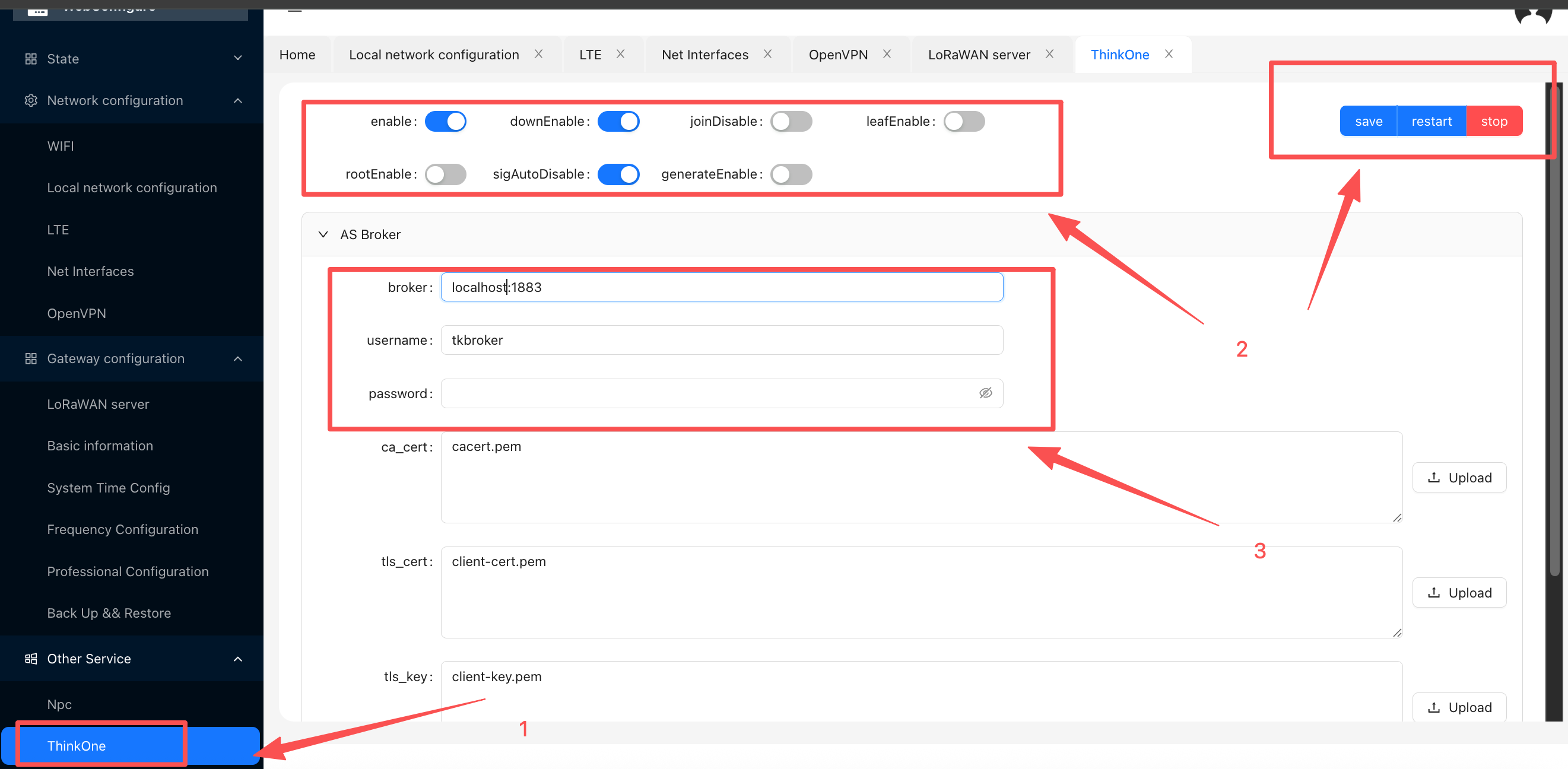
Other data configurations should be set as shown in the figure below:
1.3.1. Function Configuration
| Configuration Item | Status |
|---|---|
enable | Enabled |
downEnable | Enabled |
joinDisable | Disabled |
leafEnable | Disabled |
rootEnable | Disabled |
sigAutoDisable | Enabled |
generateEnable | Disabled |
Note: The above are the system-recommended enabled states for the functional modules. Please configure according to actual needs. It is not recommended to modify the default settings unless necessary.
1.3.2. AS Broker Configuration
The gateway's default AS Broker address is: localhost:1883. It connects using the built-in username and password, which are pre-configured at the factory and usually do not need to be changed by the user.
⚠️ Important Note:
If you accidentally modify the username or password and cannot connect, please use the following credentials to reset. If the issue persists, please contact MenThink Technology.
username=thinklink , password=Z4fZr1eRW+ZcczXtbU9ebQ==
1.3.3. AS2 Broker Configuration
If you need to forward the data parsed by the NS to a third-party platform, you can configure the AS2 Broker information. Set the third-party platform's Broker address, username, and password as shown in the figure below.
AS2 Broker only handles uplink data and does not accept downlink data.
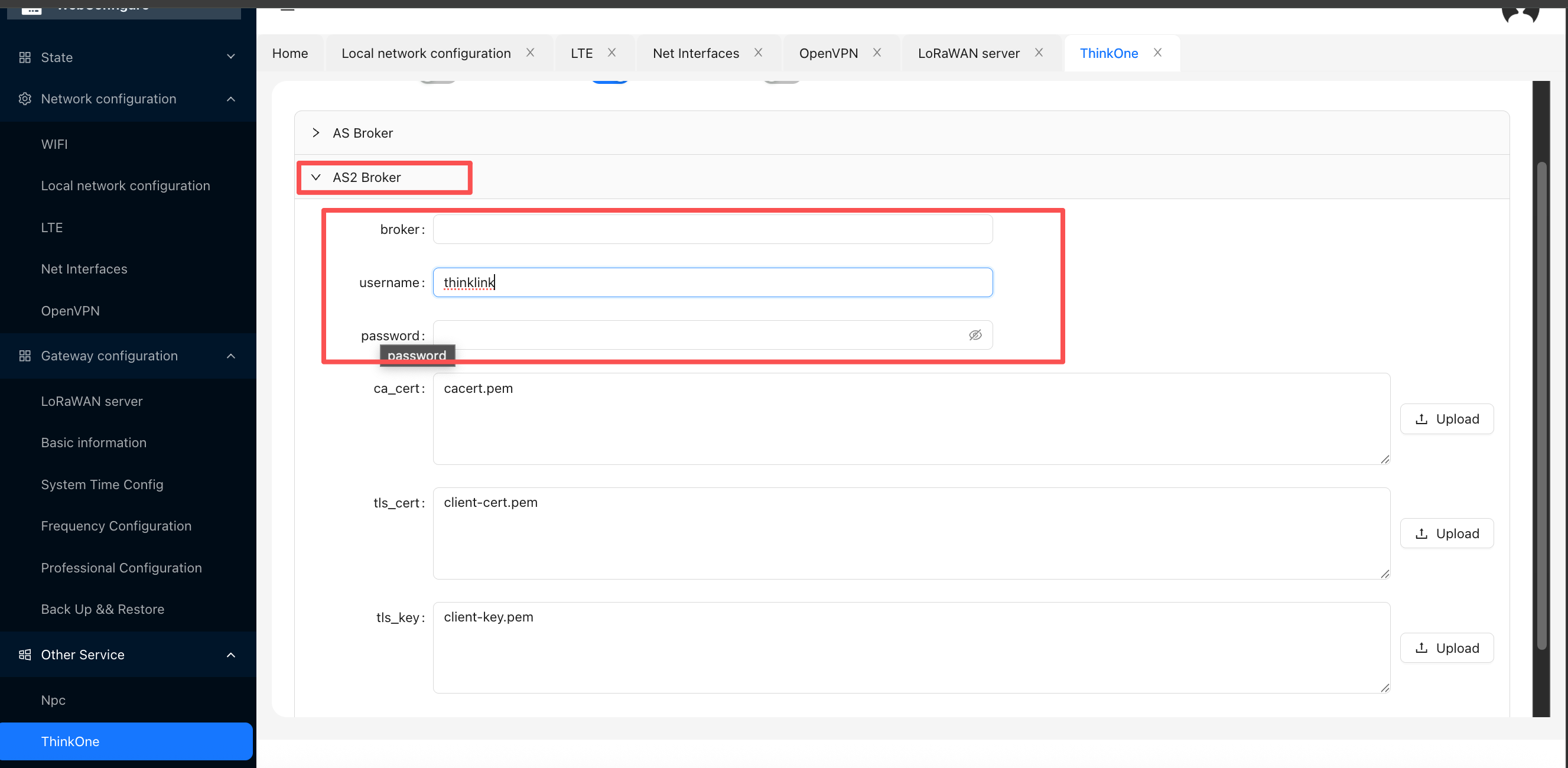
Note: If you do not need to forward application data to a third-party platform, please keep the AS2 Broker address empty.
1.3.4. Restart Service
After completing the configuration, please follow these steps to restart the ThinkOne service for the configuration to take effect:
- Click the Save button to save the current configuration;
- Click the Restart button to restart the ThinkOne service.
1.4. Change LoRaWAN Server
1.4.1. Enable nsLocal
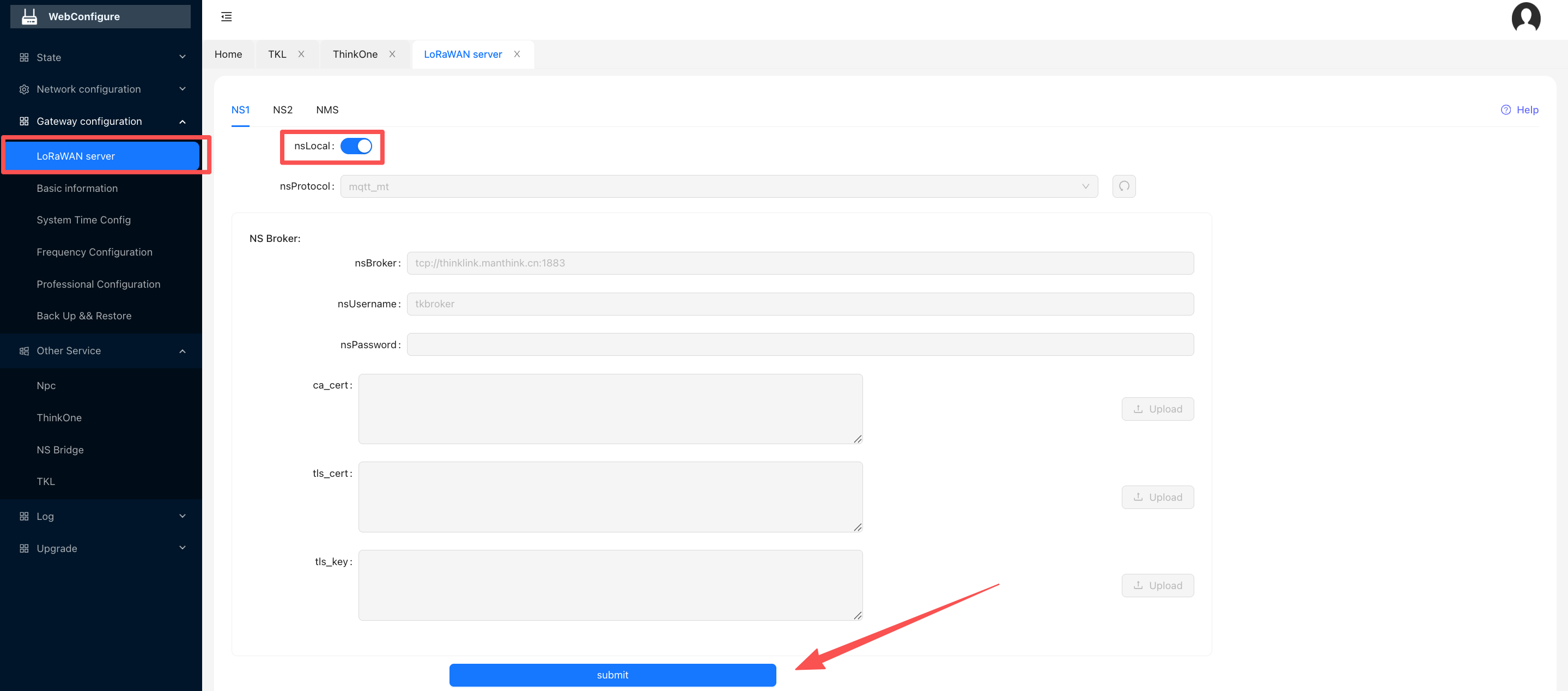
As shown in the figure below, after enabling nsLocal, the NS address will point to the built-in NS. After completing all parameter configurations, click submit to finalize the configuration.
1.4.2. Enable nmsLocal
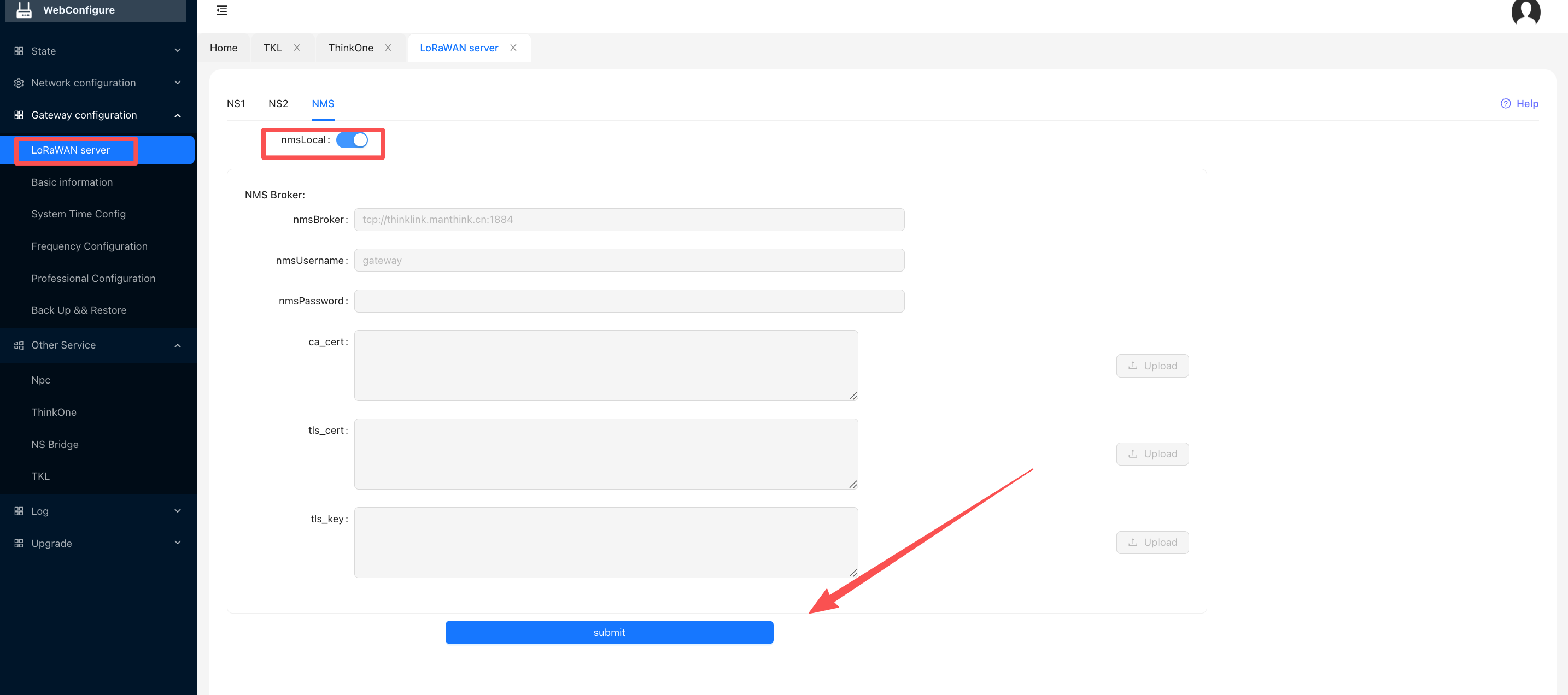
As shown in the figure below, enable the nmsLocal function. Once enabled, the gateway will be managed through the built-in TKL. After completing all configurations, click submit to finalize the configuration.
1.5. Use Built-in ThinkLink (TKL)
1.5.1. Enable ThinkLink
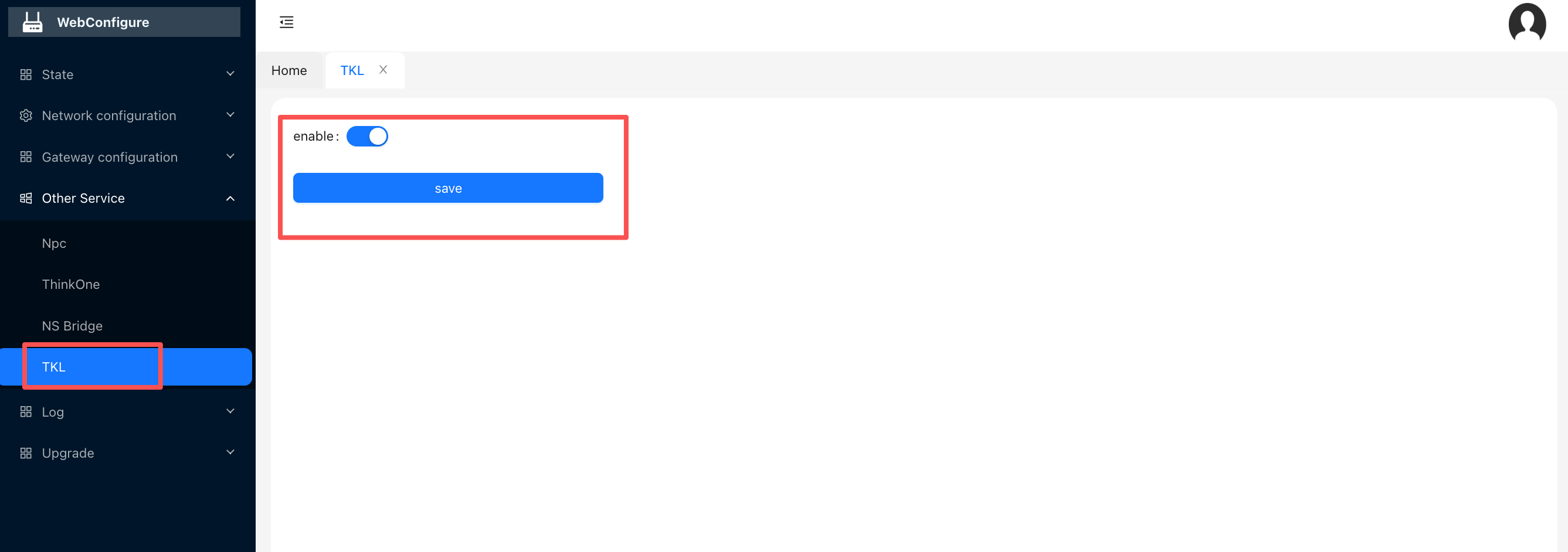
As shown in the figure below, after enabling TKL, click save.
1.5.2. Access ThinkLink
The ThinkLink inside the gateway is accessed using port 10100. The access method is http://[IP Address]:10100, for example: http://192.158.1.1:10100. After opening, the following login page will pop up.
The default login username for ThinkLink is admin, and the default organization account created is mtfac. The credentials are:
- Username:
admin - Password:
TKedge_0801
1.6. View Gateway After Login
In the Operation Management -> Gateway Management menu, you can find the corresponding gateway. If the gateway is not found, you need to click Add, enter the gateway's EUI and Pincode, and select the gateway type as ManThink to claim the gateway.
1.6.1. Import Node LoRaWAN Profile
1.6.2. Application Data Testing
ThinkLink supports two types of application data: the raw data decrypted by LoRaWAN NS, and the application layer data transcoded by the ThinkLink object model. Both types of data support subscription via the ThinkLink Broker or pushing to a third-party platform.
You can use ThinkLink's forwarder to implement custom protocol format forwarding to a third-party platform.
1.6.3. ThinkLink Object Model Data
Please refer to the ThinkLink Manual.
1.6.4. Raw Data After Decryption
If you need to push AS data to a third-party platform, you can configure the AS2 broker information inside the gateway to push the data to the third party. Note that AS2 information does not support downlink data.
1.7. MQTT Broker Connection Information
The MQTT Broker address for the built-in AS (Application Server) on the gateway is:
- Address:
[Gateway IP Address]:1883
Example:192.158.1.1:1883 - Username:
asUser - Password:
as-user@1705
1.7.1. Subscription Topic
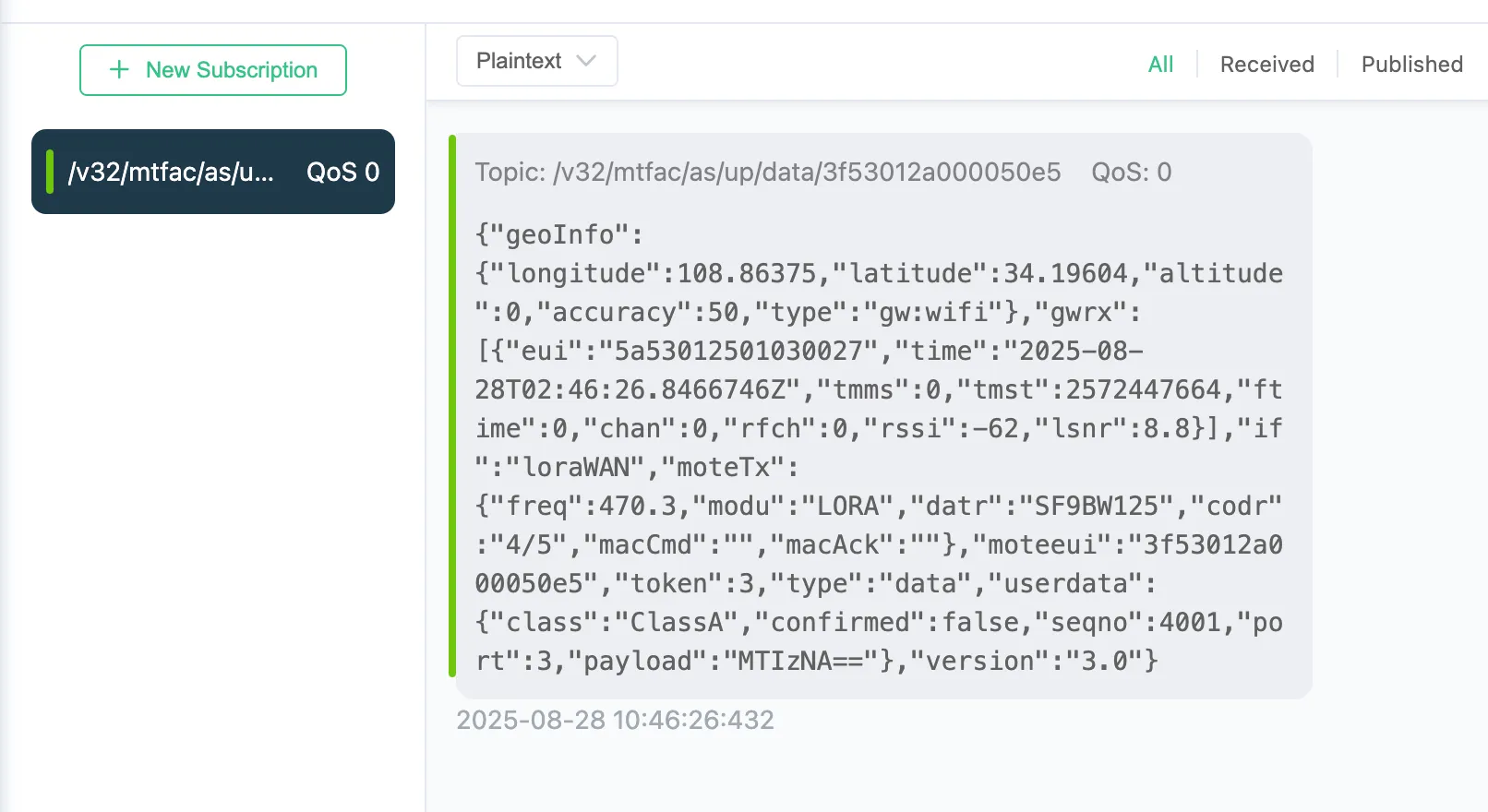
Uplink data from devices will be published to the following topic:
/v32/mtfac/as/up/data/#You can use MQTT client tools such as MQTTX to subscribe to this topic and view the data sent by the device in real-time.
1.7.2. More Information
For more product information or technical support, please visit:
🔗 MenThink Technology Official Website
🔗 ThinkLink LoRaWAN Platform