1. Personal Center
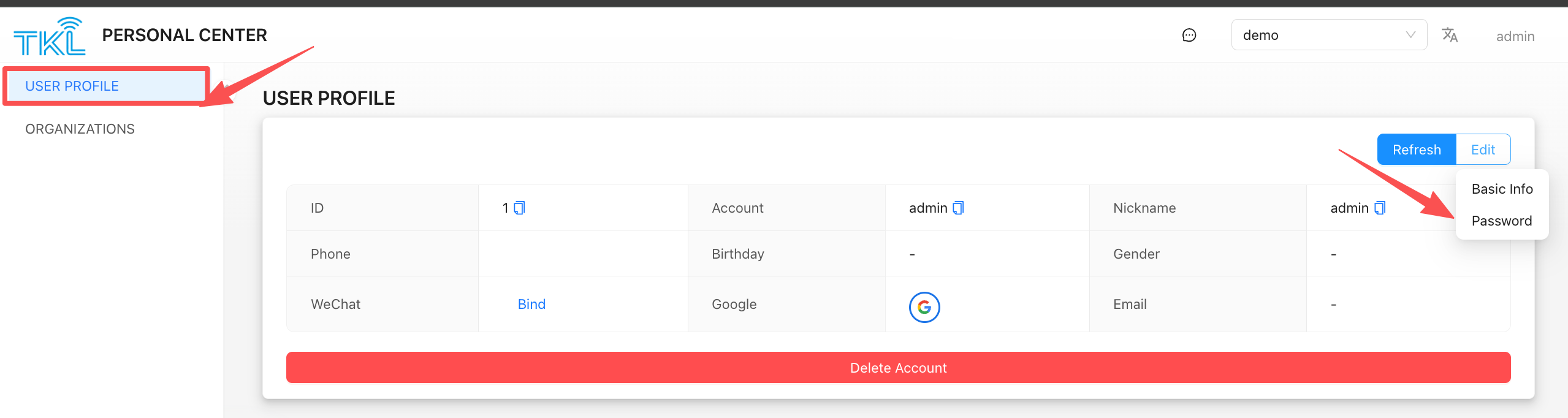
after successful login, users can manage personal information, switch organizations and process system messages through the "Personal".
- when logging in for the first time, the system will automatically jump to the user information settings page.
- If you need to modify the information later, you can click "Personal " in the top navigation bar to enter the information management interface at any time.
1.1. Function Description
- ✅ Organization Switch you can switch between multiple organizations that have joined the organization. Select a different organization to go to the corresponding business platform interface to view and manage resources under the organization.
- ✅Information editing click the "Edit" button to modify the user's nickname, Avatar and other basic information, and support to change the login password.
- ✅Message Notification
click the message icon to view and process system notifications, such as organization invitations, approval requests, and other important information.
1.2. password management
1.2.1. operation steps
- go to the "Profile" menu.
- Click the ‘Edit’button to expand the detail editing panel.
- Click Modify in the "Password" area, and the system will pop up the password modification dialog box.
- Enter the current password, new password and confirmation password, and the password update can be completed after submission.
Note the user account name must be unique system-wide.