1. Thing Model
the Thing Model is the core module in the ThinkLink platform that defines device functionality and data structures. Through the thing model, raw data from the LoRaWAN network server (NS) or other Protocol access can be parsed into standardized application layer data (such as telemetry data, attribute information), and support visual display in tables, charts, or dashboards.
1.1. Create a thing model
when creating a new object model, you need to enter unique Name as identification. This name cannot be repeated throughout the system. It is recommended to name it according to the type or function of the device (for example: temperature and humidity sensor_Model A).
After the creation is completed, you can configure the parsing script to decode and map the upstream data.
1.2. Parse Script Description
The role of the parsing script is to convert the raw data sent to ThinkLink by the external platform into a structured telemetry data (telemetry_data) and shared Properties (shared_attrs) for subsequent application processing and display.
1.2.1. Input parameters
when the script is executed, the system automatically passes in the following parameters:
| parameter Name | type | description |
|---|---|---|
device | Object | the device object to which the message belongs, which contains all the attributes and historical data of the current device. |
msg | Object | the packet origin from the LoRaWAN Application Server (AS). For MQTT access, the message body is in JSON format. |
thingModelId | String | the unique ID of the current object model, which is used to obtain the historical telemetry data of the corresponding object model of the device. |
noticeAttrs | Object | identifies which attributes change and trigger notification events for conditional determination. |
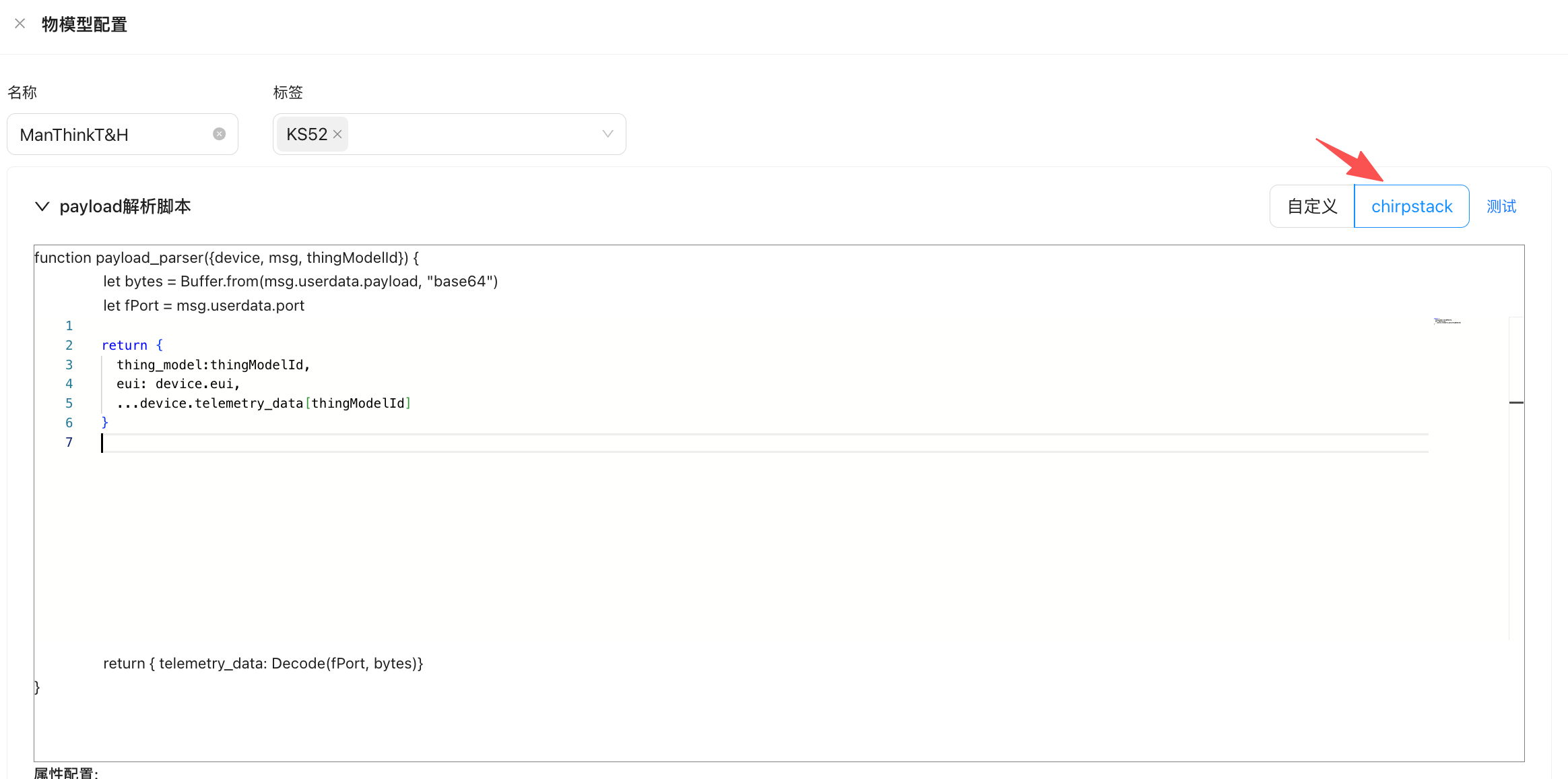
Prompt: If you already have a parsing script written based on ChirpStack, you can directly select ChirpStack compatibility mode. ThinkLink has completed the interface adaptation and can run seamlessly by copying the original code.
1.2.2. Telemetry Model Reference Code
Below is a typical parsing script example for a LoRaWAN temperature and humidity sensor, applicable to binary payloads with port number 11 and a fixed length of 15 bytes. Configuration parameters (such as COV threshold, interval, etc.) are sent via port 214 and also returned through port 214. The device model parses these configuration parameters into shared attributes.
let    payload = Buffer.from(msg?.userdata?.payload, "base64");
    let    port=msg?.userdata?.port || null;
    function parseSharedAttrs(payload) {
        if (port!=214||payload[0]!=0x2F) { return null}
        let shared_attrs = {};
        if (payload.length<5) { return null}
        shared_attrs.content = payload.toString('hex');
        let size=payload.length-4
        let regAddress=payload[2]
        for (let i=0; i<size; i++) {
            regAddress=payload[2]+i
            switch (regAddress) {
                case  58:
                    if  ( size<(2+i) ) { break }
                    shared_attrs.period_data = payload.readUInt16LE(4+i)
                    break;
                case 142:
                    if  ( size<(2+i) ) { break }
                    shared_attrs.period_measure = payload.readUInt16LE(4+i)
                    break;
                case 144:
                    if  ( size<(1+i) ) { break }
                    shared_attrs.cov_temperatrue = payload.readUInt8(4+i)*0.1
                    break;
                case 145:
                    if  ( size<(1+i) ) { break }
                    shared_attrs.cov_humidity = payload.readUInt8(4+i)*0.1
                    break;
                default: break
            }
        }
        if (Object.keys(shared_attrs).length == 0) {
            return null
        }
        return shared_attrs;
    }
    function parseTelemetry(payload){
        if (port!=11||payload[0]!=0x21||payload[1]!=0x07||payload[2]!=0x03||payload.length !=15){
            return null
        }
        let telemetry_data = {};
        telemetry_data.period_data =payload.readUInt16LE(5)
        telemetry_data.status ="normal"
        if ((payload[7]&0x01)!=0){  telemetry_data.status ="fault" }
        telemetry_data.temperatrue=Number(((payload.readUInt16LE(8)-1000)/10.00).toFixed(2))
        telemetry_data.humidity=Number((payload.readUInt16LE(10)/10.0).toFixed(2))
        let vbat=payload.readUInt8(12)
        telemetry_data.vbat=Number(((vbat*1.6)/254 +2.0).toFixed(2))
        telemetry_data.rssi=msg.gwrx[0].rssi
        telemetry_data.snr=msg.gwrx[0].lsnr
        return telemetry_data
    }
    let tdata=parseTelemetry(payload)
    let sdata=parseSharedAttrs(payload)
    if (tdata?.period_data!=null){
        if (sdata===null) {sdata={}}
        sdata.period_data = tdata.period_data
    }
    return {
            telemetry_data: tdata,
            server_attrs: null,
            shared_attrs: sdata
    }
1.2.3. Detailed explanation of key parameters
1.2.3.1. device -Device Object
represents the device instance that received the message, including all its known states and properties:
device.telemetry_data[thingModelId]: Gets the latest package of telemetry data for the specified object model under the device.- Support for multi-object model query: If the device is mounted with multiple telemetry models, you can use different
thingModelIdaccess the respective historical data separately.
1.2.3.2. msg -Raw message data
the standard data format of the LoRaWAN AS interface received by ThinkLink is AS follows:
{
  "if": "loraWAN",
  "gwrx": [
    {
      "eui": "5a53012501030011",
      "chan": 0,
      "lsnr": 13.2,
      "rfch": 1,
      "rssi": -92,
      "time": "2025-09-17T03:51:04.8516751Z",
      "tmms": 0,
      "tmst": 2845948222,
      "ftime": 0
    }
  ],
  "type": "data",
  "token": 14892,
  "moteTx": {
    "codr": "4/5",
    "datr": "SF7BW125",
    "freq": 471.5,
    "modu": "LORA",
    "macAck": "",
    "macCmd": ""
  },
  "geoInfo": {
    "type": "gw:wifi",
    "accuracy": 50,
    "altitude": 0,
    "latitude": 34.19925,
    "longitude": 108.8659
  },
  "moteeui": "6353012af1090498",
  "version": "3.0",
  "userdata": {
    "port": 11,
    "class": "ClassA",
    "seqno": 18654,
    "payload": "IQcDDG4PAADWBIsC34IG",
    "confirmed": false
  }
}
common field extraction methods:
- load data:
msg.userdata.payload(Base64 encoding) - port number:
msg.userdata.port - signal strength (RSSI):
msg.gwrx[0].rssi - signal to noise ratio (SNR):
msg.gwrx[0].lsnr - timestamp:
msg.gwrx[0].time
for non-LoRaWAN data sources (such as JSON data reported by MQTT), you can directly access the corresponding fields at the JSON level.
1.2.3.3. thingModelId -Thing Model Identifier
used to access the historical data of the device-associated specific object model. For example:
let lastData = device.telemetry_data['temp_humi_v1'];1.2.3.4. noticeAttrs -Change notification sign
this object indicates whether this message is triggered by some property change:
| field | type | description |
|---|---|---|
server_attrs | Boolean | if true , indicating that the server attribute has changed |
shared_attrs | Boolean | if true , indicates that the shared attribute has changed |
telemetry_data | Boolean | if true , indicating telemetry data updates |
can be used to control whether specific logic needs to be performed (such as writing to the database only on telemetry updates).
1.2.3.5. Return value format
the parsing script must return a structure that conforms to the following specifications:
return {
    sub_device:null,
    telemetry_data: {
        temperature: 23.5,
        humidity: 60.2,
        rssi: -85
    },
    server_attrs: null,
    shared_attrs: {
        heartbeat_interval: 30
    }
};
1.2.3.6. Response Field Definitions
| Field Name | Default | Description |
|---|---|---|
| shared_attrs | null | Shared attributes — persistent data stored at the device level, which can be invoked by other modules within the system (e.g., automation rules, alarm evaluations). |
| sub_device | null | Sub-device identifier. If the parent device (such as a DTU) collects data from sub-devices via RS-485 or M-Bus, this field should contain the communication address of the sub-device (e.g., its 485 address). Based on this, ThinkLink will virtually generate a sub-device in the device management system and automatically assign it a unique EUI. |
| telemetry_data | null | Telemetry data — used to report real-time operational data and application-layer parsed results. Commonly used in dashboards, trend charts, and historical data queries. |
| server_attrs | null | Server-side attributes — metadata or configuration information that does not need to be stored locally on the device. Stored only on the ThinkLink server side, suitable for advanced feature extensions. |
✅ Additional Notes:
- Although all fields are marked as "No" (not required), properly populating them according to business requirements is essential for achieving full system functionality.
- Data types must comply with key-value format. Use valid strings, numbers, booleans, or objects as appropriate.
1.3. Show Fields
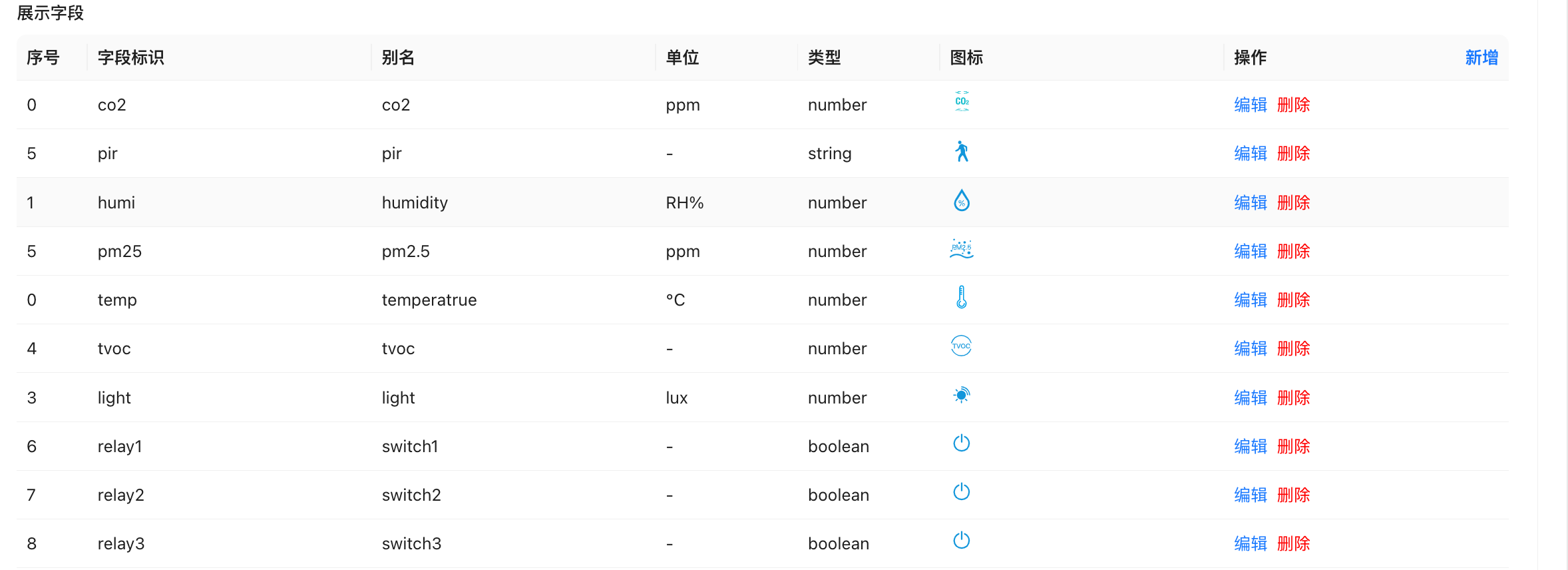
through the "Display field" configuration, you can define the specific data items presented in the application layer data presentation interface (such as tables, cards, dashboards, etc.).
- Telemetry Field: must be reported from the device
telemetrySelect from the data item, and the field names must be exactly the same. - Serial Number used to control the order in which the field appears in the table or card view.
- Alias: The name of the field displayed in the front-end interface to improve readability.
- Unit: The unit corresponding to the value of this field (for example, ° C,%, m³, etc.).
- Type: Select according to the actual data type. It is recommended to select numeric data.
numbertype to support formatted display. - Icons: Optional icon for visual display. Support SVG format, recommended from ali icon vector library download and embed the SVG code.
Prompt: After the display fields are correctly configured, the system will automatically extract the corresponding fields from the parsed data of the TMS and perform visual rendering on the application side.
1.4. BACnet field configuration
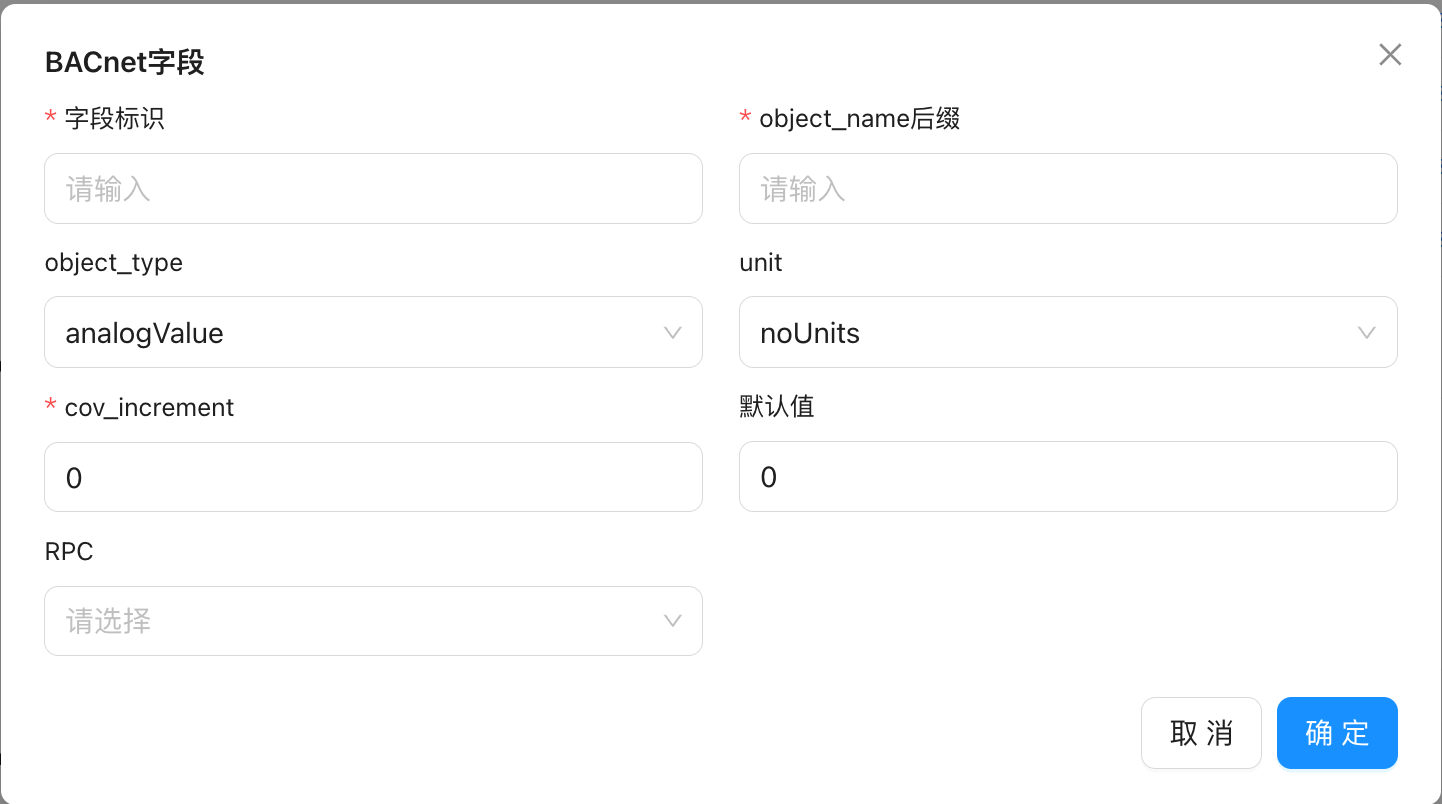
in the ThinkLink(TKL) system, when providing device data through the BACnet protocol, you need to map and configure the relevant data fields. The following is the description of each parameter when adding the BACnet field:
- field_name
The field identifier of the data item, which must be consistent with the field identifier defined in the object model, is used to implement the mapping between the object model data and the BACnet object properties. - object_name_suffix
the name suffix. The TKL system will use the device's EUI address to concatenate with this suffix to generate a uniqueobject_nameto ensure the uniqueness of each BACnet object in the network. - object_type
select the type of the BACnet object corresponding to the data item, such as Analog Input (Analog Input), Binary Output (Binary Output), etc., based on the nature of the actual data. - unit
configure the unit of measurement for this data item to ensure that the physical meaning is correctly displayed in the BACnet client (such as BAS or YABE). - cov_increment
Change of Value trigger Upload threshold (Change of Value Increment). When the data Change amplitude exceeds this set Value, the system will actively send COV(Change of Value) notification, which is suitable for scenarios that support the COV function. - default_value
the initial value of the data item. Before the device reports the data, the system uses the default value to display and respond. - RPC
Associates the remote control function corresponding to this field. If you want to write to this field or issue instructions, you must configure it in the RPC model in advance before you can select the corresponding RPC function here.
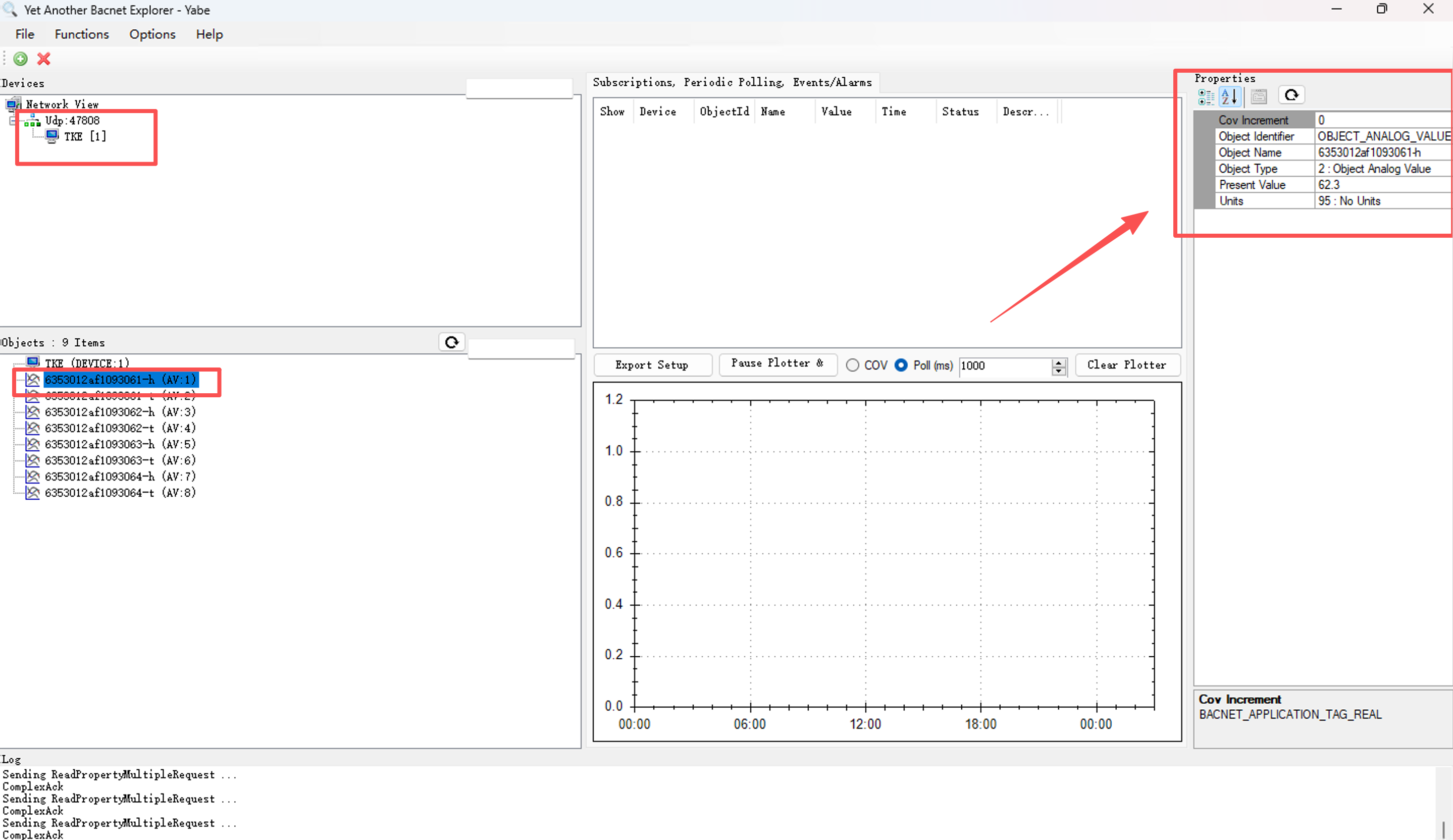
1.4.1. Use YABE to view BACnet data
YABE(Yet Another BACnet Explorer) is a commonly used BACnet device debugging and browsing tool. After the configuration is complete, you can connect to the TKL system through YABE to discover and view the published BACnet devices and their object attributes, and verify whether the data is published normally.
1.4.2. Generate a BACnet point table
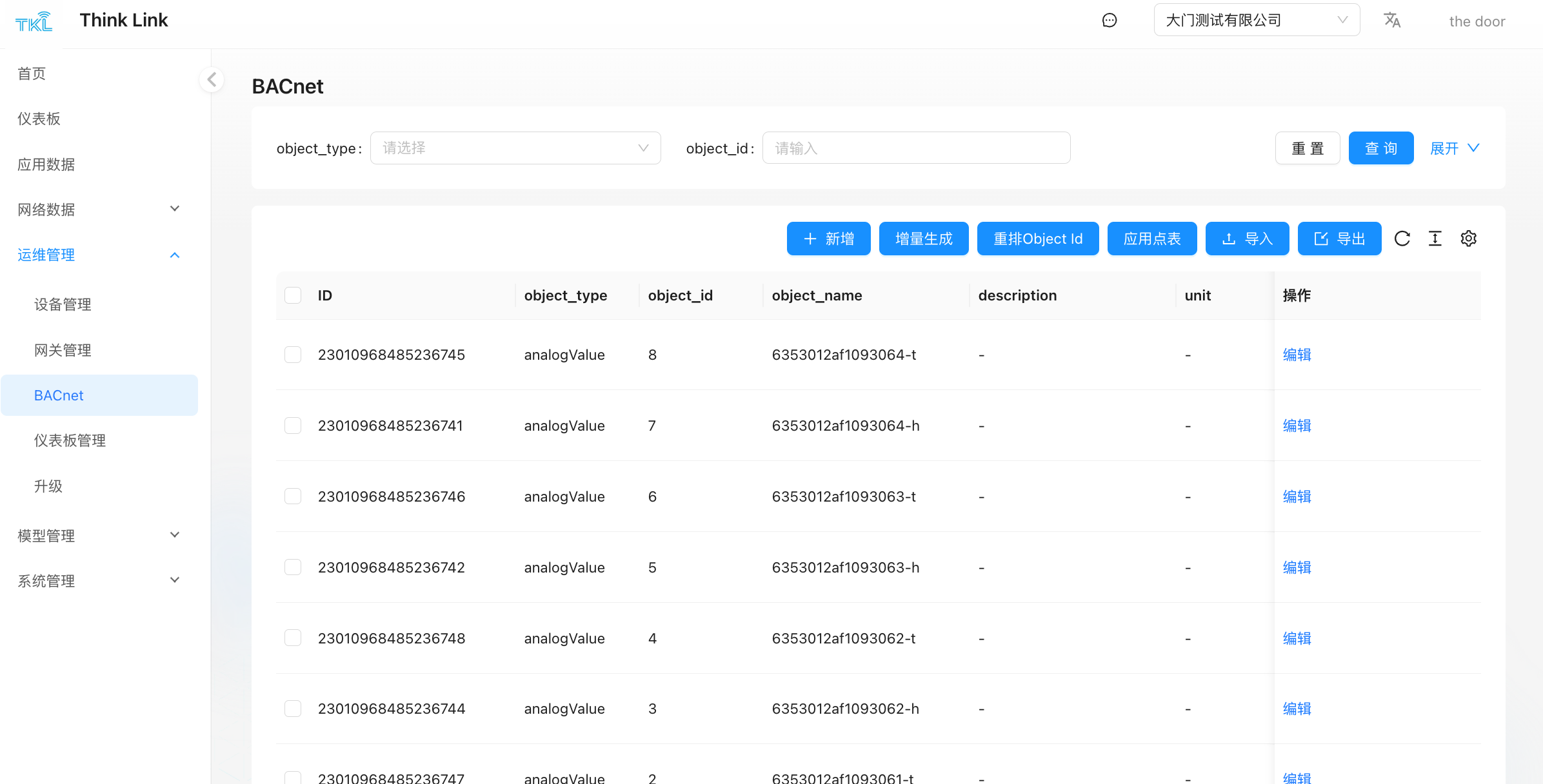
if the user's BMS (Building Management System) needs to be formally deployed, a standard BACnet point table file is usually required to facilitate system integration and debugging.
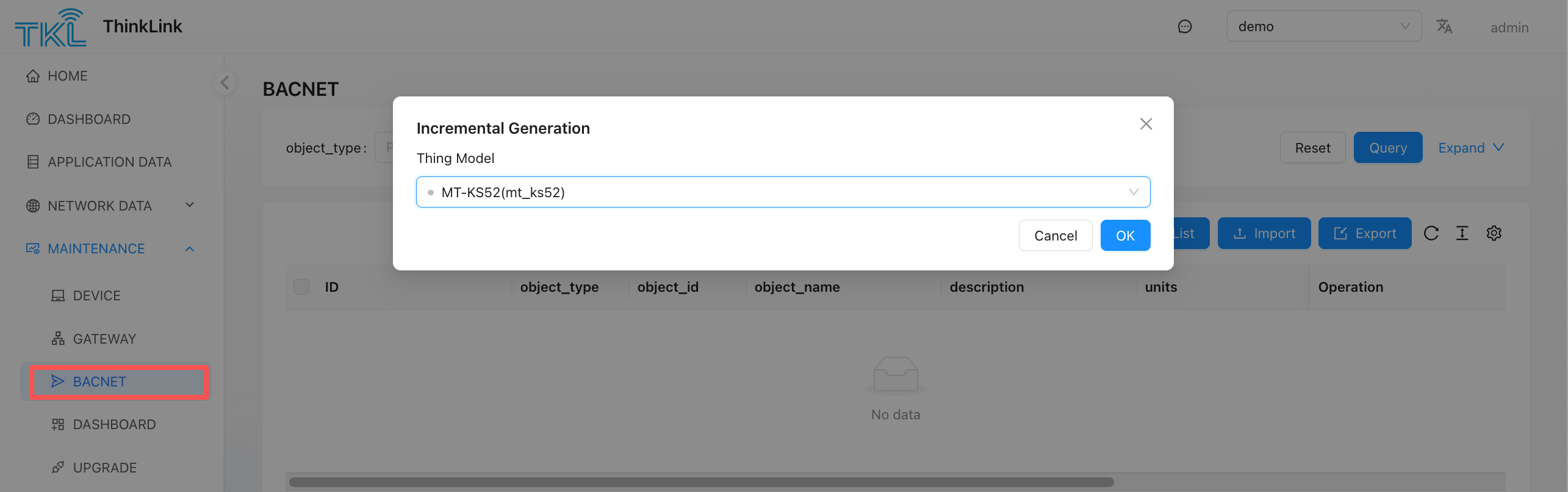
- Enter operation and maintenance management → BACnet module.
- Click incremental generation button.
- Select the target in the pop-up window object Model.
- After confirmation, the system will automatically generate the point table information of all BACnet fields under the corresponding model.
The generated point table contains key information such as object type, object instance number, object name, attribute description, data type, company, read and write permissions, and can be delivered to third-party systems for docking.
1.5. Home Assistant integrated configuration
- [Note 1] Function enabling requirements :the Home Assistant function must be manually enabled on the device configuration page to be automatically discovered and integrated by the Home Assistant. When this feature is not turned on, the device does not send any discovery messages to Home Assistant.
- [Note 2] Configuration Effective Mode :after modifying the field configuration of Home Assistant, you need to go to TKL's server Configuration Page, click "Re-register all devices" button, the updated field configuration will take effect and trigger the re-release of device information to Home Assistant.
1.5.1. Add Home Assistant field
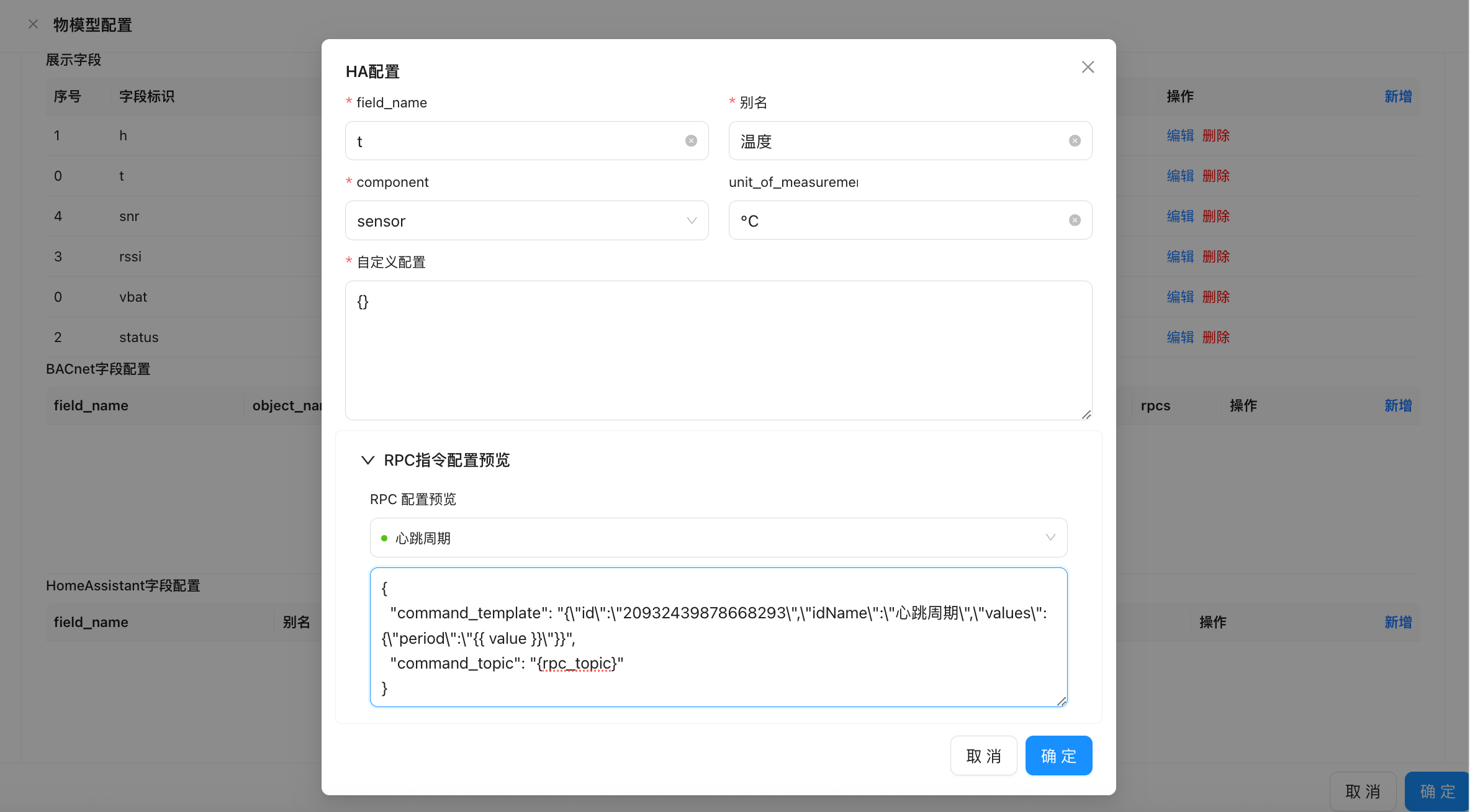
| field Name | description |
|---|---|
field_name | the field identifier, which must be consistent with the identifier defined in the Tise model for data matching and mapping. |
name | name of the field displayed on the Home Assistant interface. |
component | Specifies the component types supported in Home Assistant. Currently, TKL only supports native sensor type. |
unit_of_measurement | the unit of measurement for the value of this field (E. G., ° C,%, Pa, etc.). |
1.5.2. Supported device types
currently, ThinkLink only natively supports devices sensor(Sensor) type access Home Assistant .
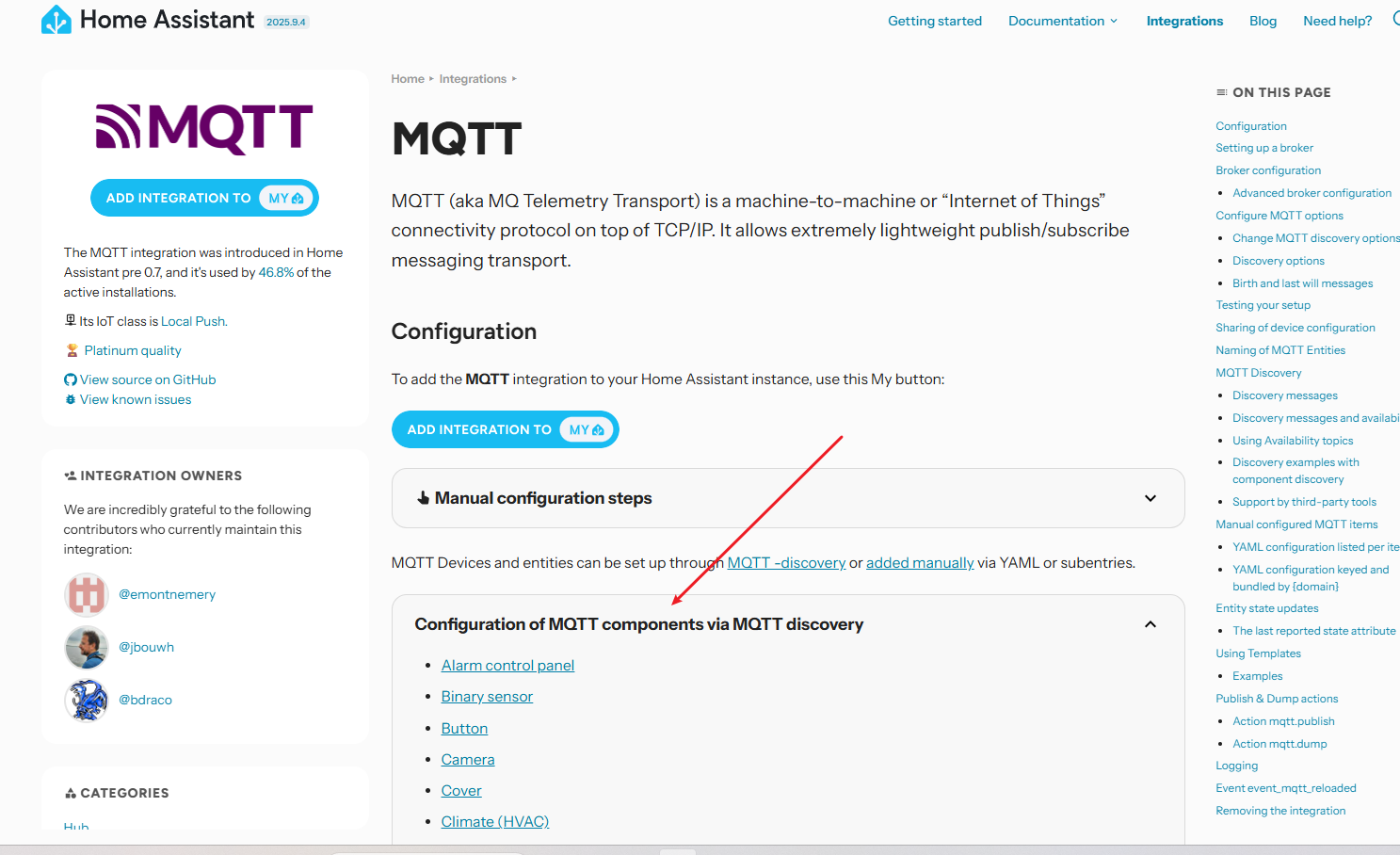
For other types of devices (such as switch, light, binary_sensor, and so on), you need to define them in the custom configuration of Home Assistant. For details, see The MQTT Discovery guide in the official documentation of Home Assistant: https://www.home-assistant.io/integrations/mqtt/#mqtt-discovery [1].
By following the MQTT Discovery protocol, you can create other types of entities manually or automatically through the platform.
1.5.3. View devices on Home Assistant
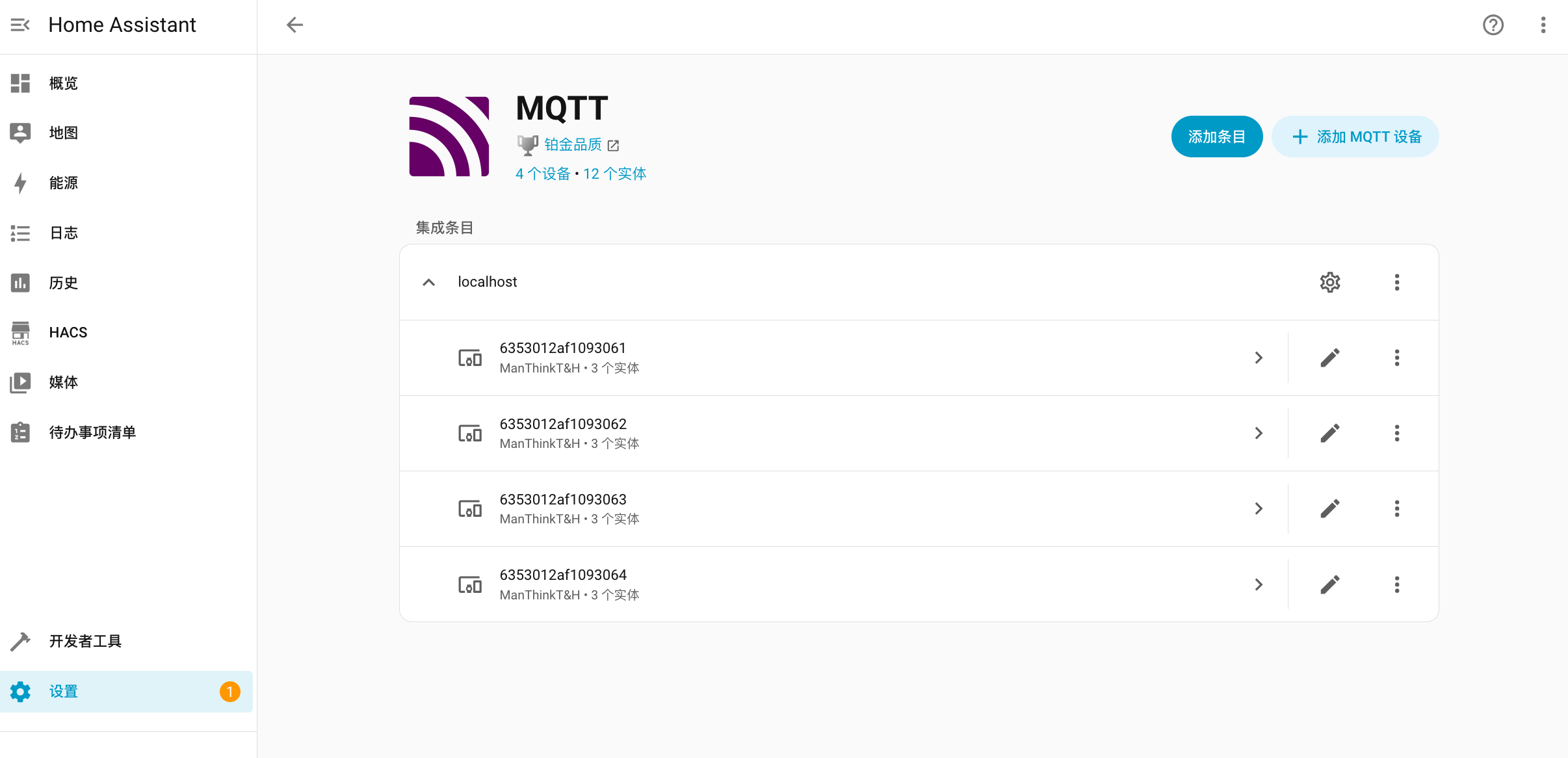
when the configuration is complete, in your Home Assistant instance:
- ensure it is added and configured MQTT integration and connect to the MQTT Broker used by TKL.
- TKL will use the MQTT topic (the default is
homeassistant/prefix) automatically sends a device Discovery message . - Enter settings> Devices and Services> MQTT" page, you can see the devices and sensors automatically discovered and registered by TKL.
After that, these devices will appear in your main interface, and can monitor, alarm, linkage and other operations.
1.6. Related object model
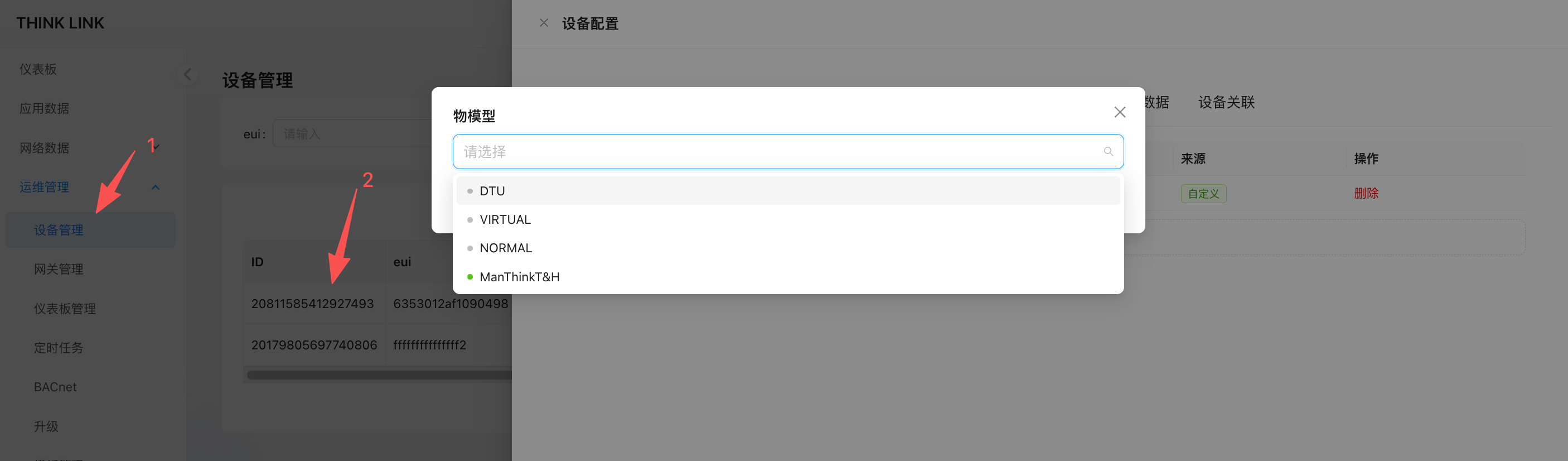
- navigate operation and maintenance management → Equipment Management to find the target device in the device list.
- Click the "Details" button of the device to enter the device details page.
- Switch object Model tab, click the Add button.
- In the pop-up list, select the created object model. After confirmation, the object model can be associated with the device.
Attention: To associate the same object model for multiple devices in batches, it is recommended to use the template function for efficient operation to improve configuration efficiency.
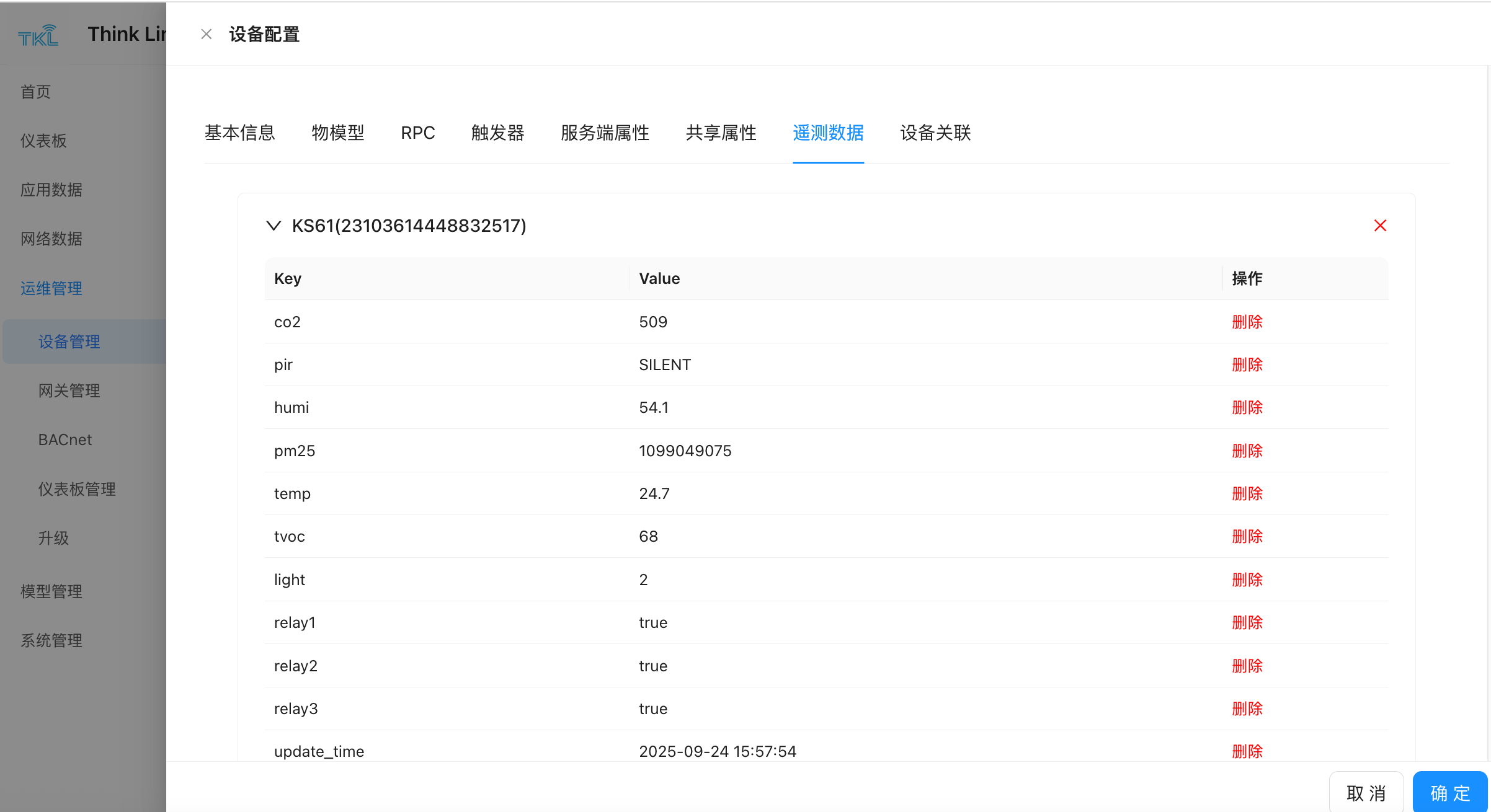
1.6.1. View application data
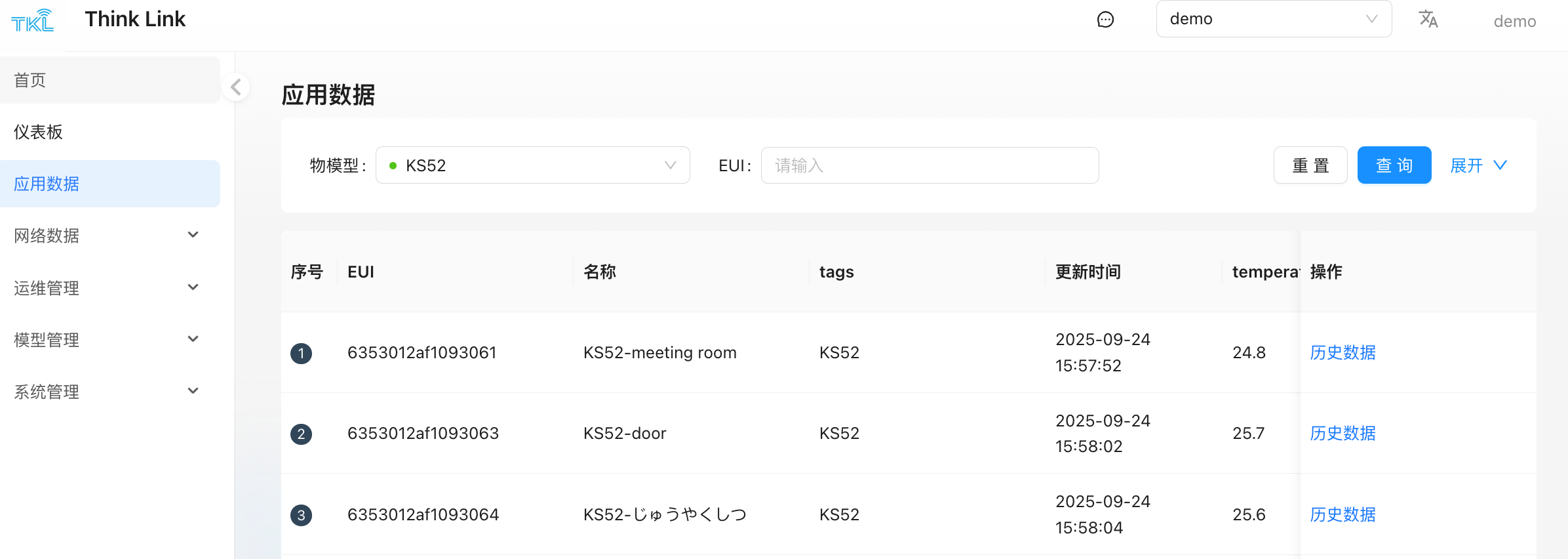
- enter the left menu bar application Data page.
- Select the corresponding TSS model at the top of the page, and the system will automatically load all device data bound to the TSS model.
- When the device has uplink data, the system parses it through the TSL model. You can view the parsed application layer data here.
- Click historical data, you can switch to the historical data view.Graph and data table view the data change trend and details in the specified time period in two formats.
1.6.2. Viewing data through device properties
- after the device reports the shared attribute data:
- enter operation and maintenance management → Equipment Management select the target device and click Details ".
- Switch shared Properties tab to view the current property value and its latest update time in real time.
- When the device reports telemetry data:
- also go to the "Details" page of the target device.
- Switch telemetry Data tab, the system will display the latest updated telemetry information, so that you can quickly grasp the operating status of the equipment.